 Google Drive
 OneDrive
Below we show how to create, rename, reorder and remove the bookmarks (the outline) of a PDF document.
-
Upload your files
Files are safely uploaded over an encrypted connection. Files stay secure. After processing, they are permanently deleted.
Rather not upload your files and work with them offline?
Try Sejda Desktop. Same features as the online service, and the files never leave your computer.Click 'Upload' and select files from your local computer.
Dragging and dropping files to the page also works.
Dropbox or Google Drive files
You can pick PDF files from Dropbox or Google Drive too.
Expand the 'Upload' dropdown and select your files.
-
Review the existing bookmarks
Bookmarks, also called the outline, are the clickable entries that make up a PDF's table of contents. Readers use them to jump straight to a chapter or section.
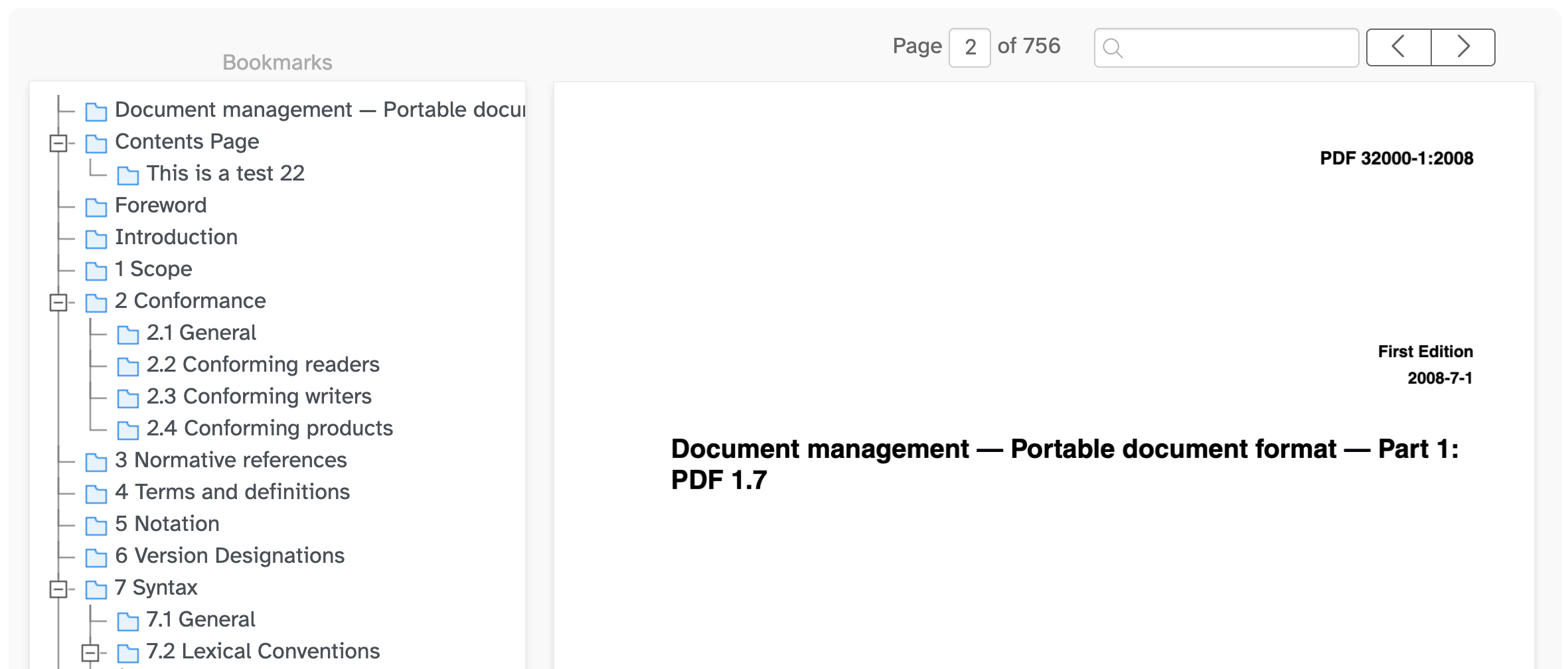
Once your PDF is loaded, its existing bookmarks appear as a tree in the 'Bookmarks' panel on the left. A live preview of the document is shown on the right.
Click the handle to the left of a bookmark to expand or collapse its child bookmarks. This lets you work through large outlines one level at a time.
Click a bookmark in the tree to jump the preview to the page it points to.
![]()
-
Find a page or search for specific text
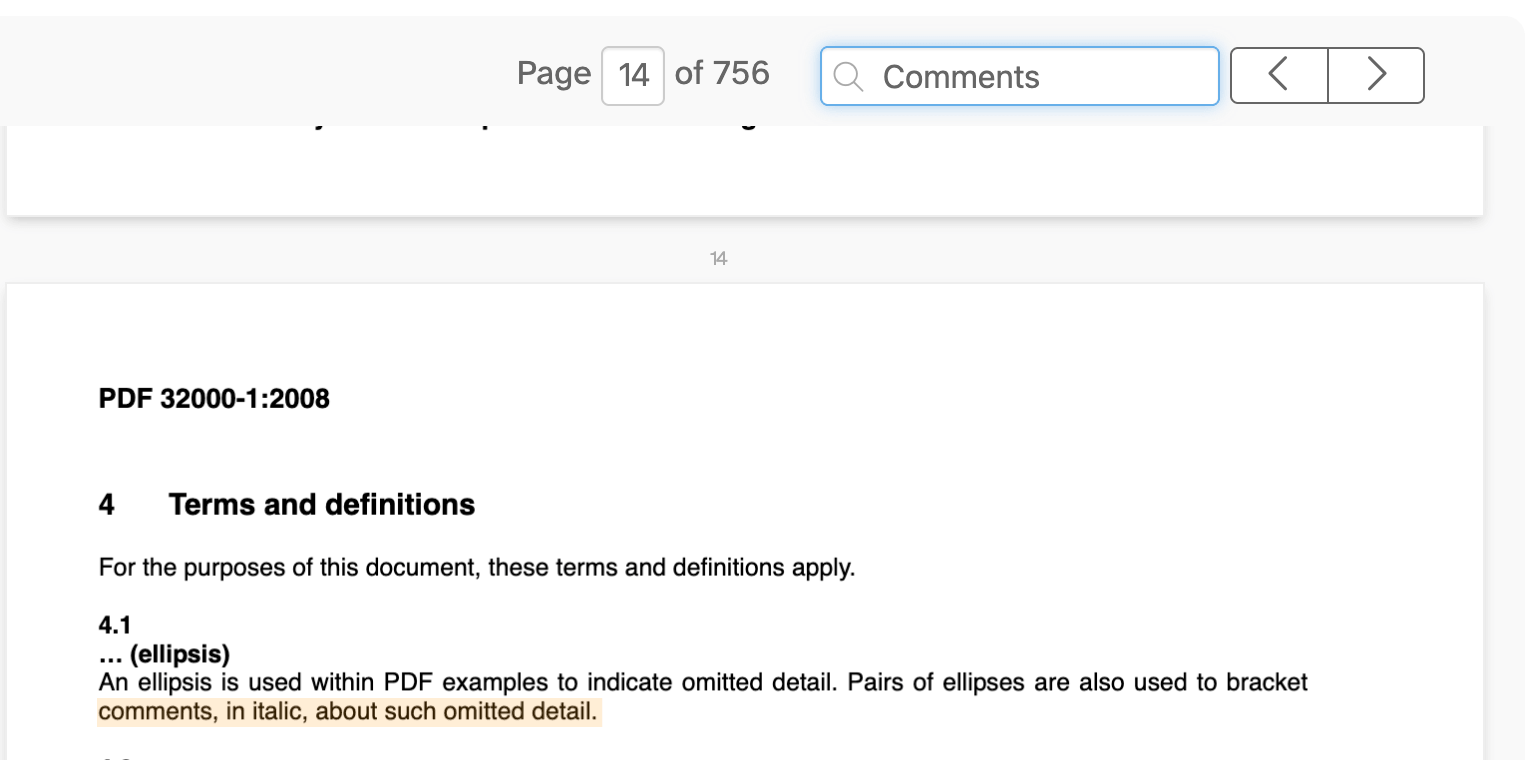
Use the page box, or the previous and next arrows, to move through the document.
To find a specific section, type a word or phrase in the search box. Every match is highlighted on the page, and you can step between matches with the arrows.
![]()
-
Create a bookmark from text on the page
Searching is the quickest way to build an outline from the document's own headings.
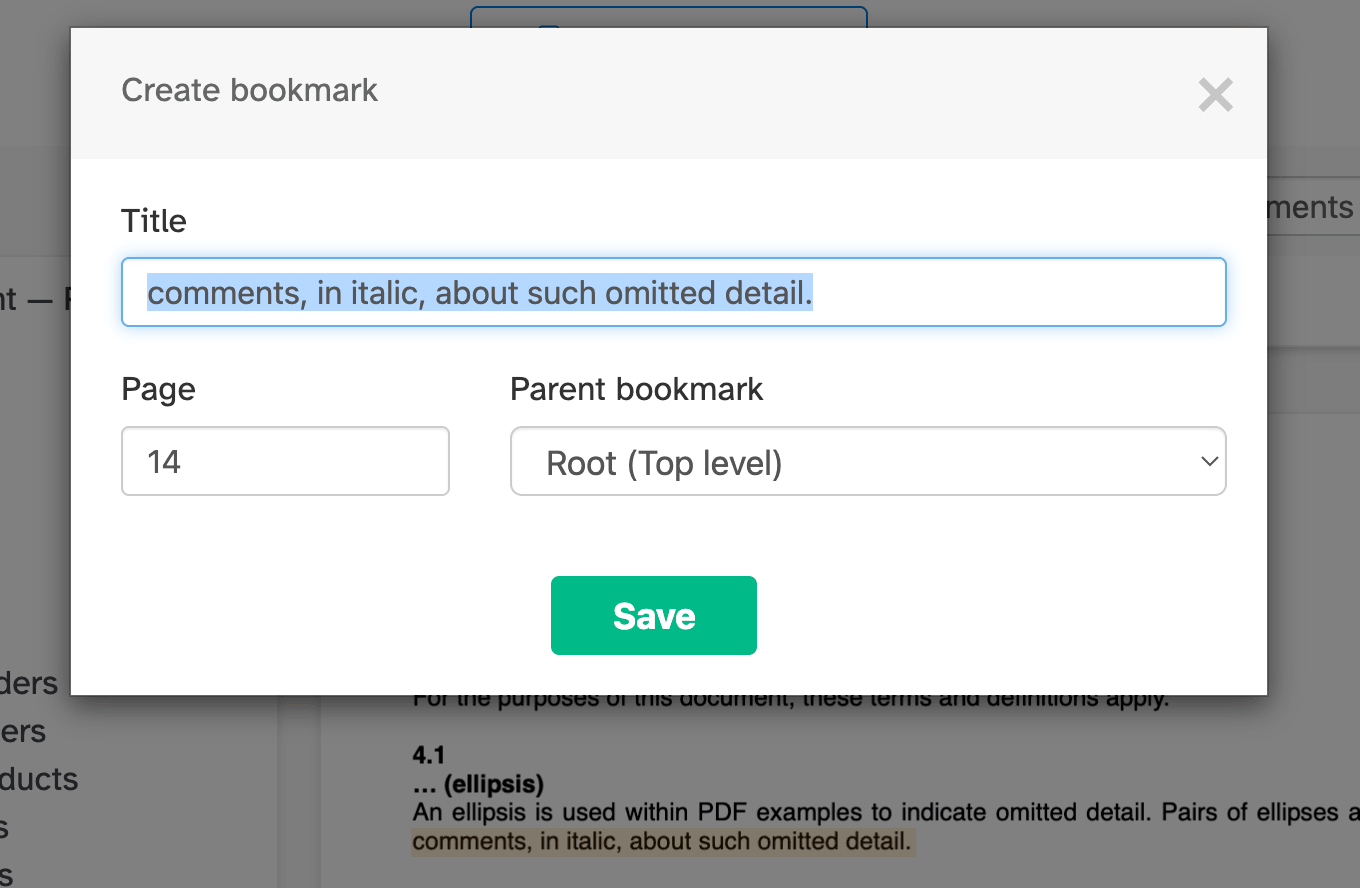
Search for a heading, then click its highlighted text on the page. A dialog opens, already filled in with the text you clicked as the bookmark name and the page it was found on.
You can also click any existing text fragment on the page to create a bookmark from it.
Adjust the name if you need to, then confirm to add the bookmark to the tree.
![]()
-
Create a bookmark on the current page
Go to the page you want the bookmark to point to, then click the 'Create bookmark on page' button at the top.
A new bookmark is added to the tree. Type a name for it and press Enter to confirm.
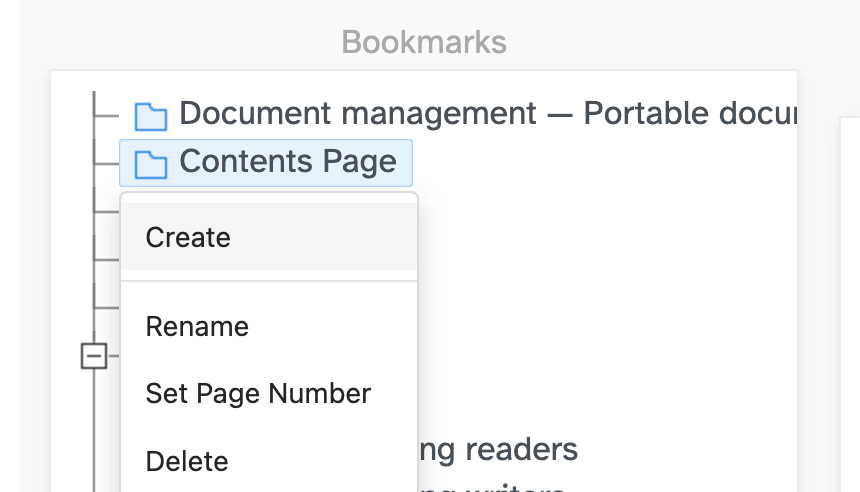
You can also right-click any bookmark and choose 'Create' to add a new bookmark nested under it.
![]()
-
Rename a bookmark
Double-click a bookmark, or right-click it and choose 'Rename'.
Edit the text inline and press Enter to confirm, or press Escape to cancel.
-
Change the destination page
Right-click a bookmark and choose 'Set Page Number' to change which page it jumps to.
Enter the new page number and confirm.
-
Reorder and nest bookmarks
Drag and drop a bookmark to move it up or down in the list.
Drop a bookmark onto another one to nest it as a child. This is how you build a multi-level outline with chapters and sub-sections.
-
Delete a bookmark
Right-click a bookmark and choose 'Delete'.
Deleting a bookmark that has children removes its children too.
-
Apply changes and download
When you're happy with the outline, click 'Apply changes' and then 'Download' your updated PDF.