 Google Drive
 OneDrive
Below we show how to convert a PDF to a fillable form
-
Select an existing PDF document
Click on 'Upload' to choose a file. No existing document? Start with a blank template.
-
Add fillable form fields to your PDF form
Go over your document's existing content and add fillable form fields where necessary.
You can choose from the following field types:
- Text Field: single text line
- Textarea: multiple text lines
- Radio: select only one from a group
- Checkbox: tick one or more choices
- Dropdown: choose one or more options from a drop-down list
- Signature box: signature box for others to sign
How to create a fillable PDF text field
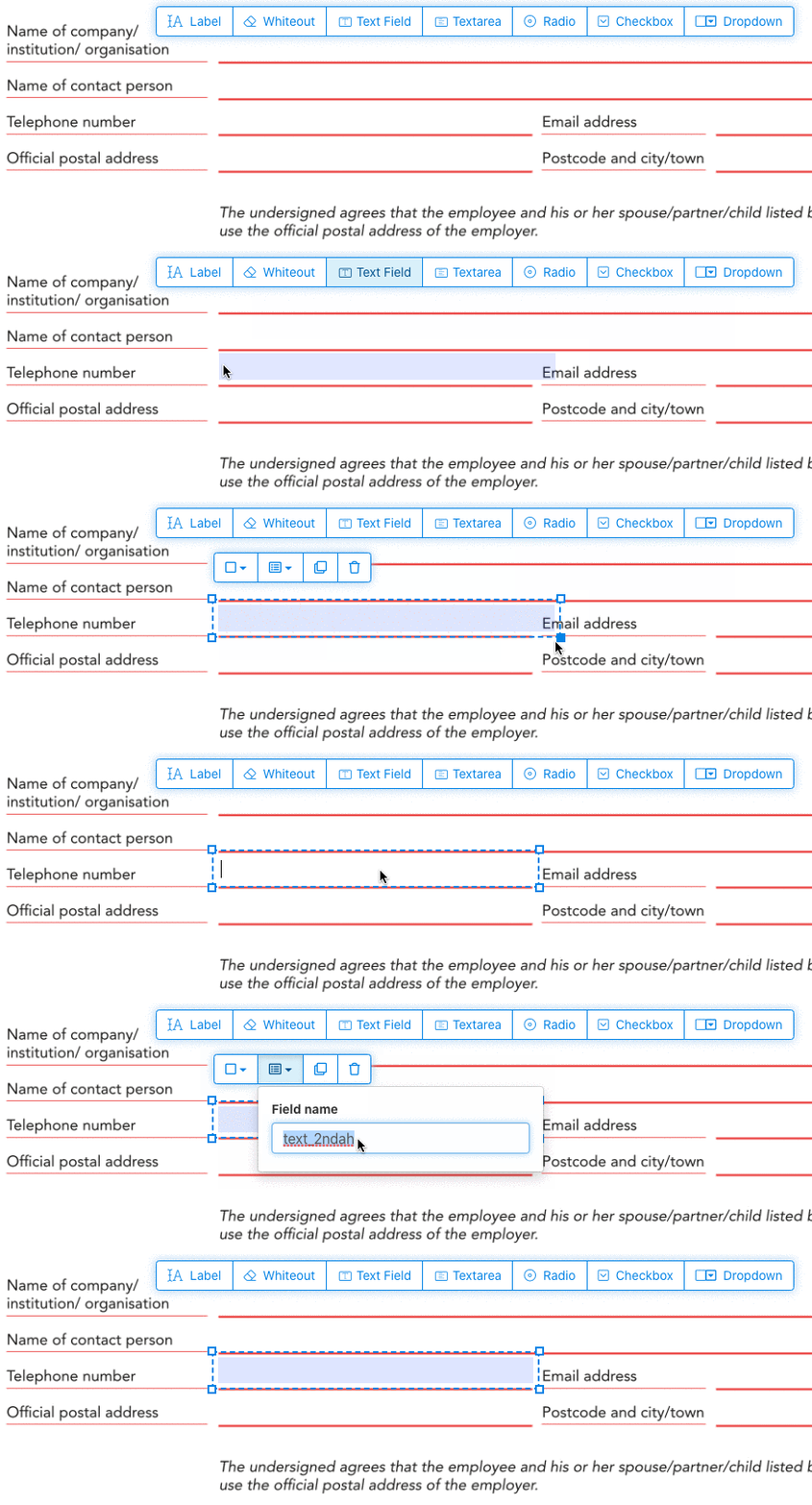
Click on the text field item from the menu. The click on the page to place a new text field.
![]()
Create checkboxes, radio buttons or dropdown
All other form fields can be added the same way.
Radio buttons are grouped together in unison by using the same form field name for all buttons. This ensures only one is selected at the same time. When the user selects one, the other radio buttons in the group are deselected.
Change border color. Configure text color in PDF form fields
Have form fields with a transparent border or pick the color that suits you best. The color of the text of the PDF fields can be configured.
The text alignment can be configured as 'Left', 'Center' or 'Right'. The font size can be set to a specific value or left as 'Auto' to that it automatically adjusts based on the amount of text typed in.
Control form field names and other properties
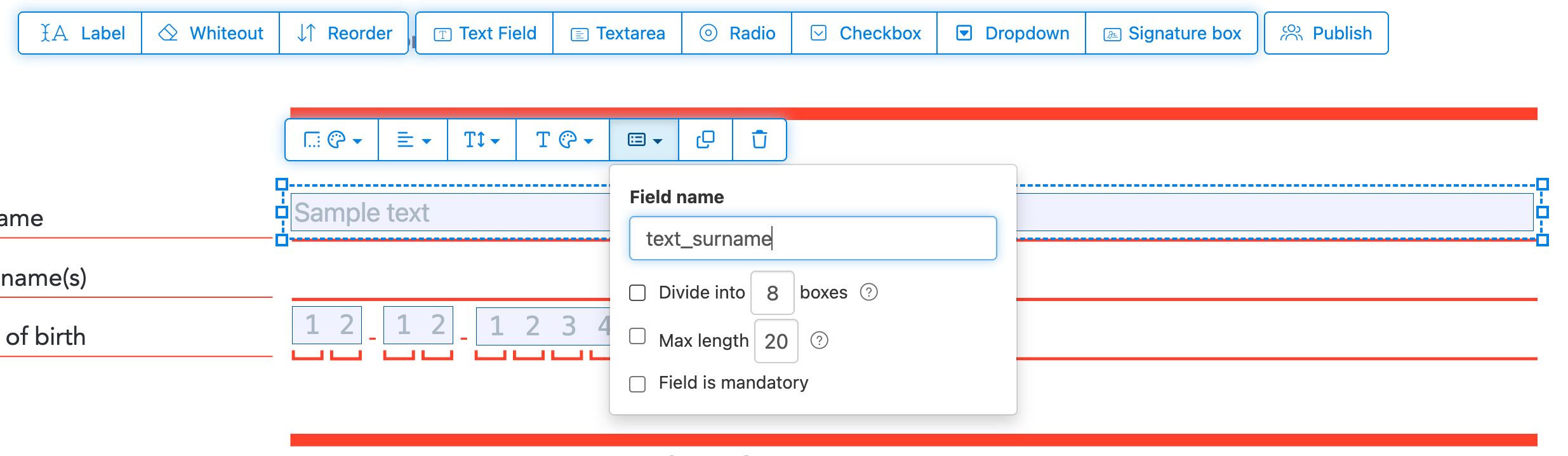
Define the name for each form field and configure specific field properties, such as multiselect, export values and more.
Mark any field as required, so it must be completed before the form can be submitted. For text fields, you can also set a maximum character length to limit input.
Text fields can be displayed as a comb field, dividing the input area into equally spaced boxes, one per character. Commonly used for date fields, postal codes, ID numbers, and similar structured inputs.
![]()
Change PDF tab order
Need to control the order in which fields are tabbed through? Click 'Reorder' to reorder form fields by dragging and dropping, or auto-sort them by rows or columns.
Align PDF fields, multi-select and duplicate across pages
Select multiple form fields at once and duplicate them to a different page, handy when building multi-page forms with repeating sections.
Use the alignment tools to line up multiple form fields with each other. Align by left, right, top, or bottom edge for a clean, professional layout.
Publish for others to fill & sign
Once your form is ready, use 'Publish' button to generate a shareable link. Anyone with the link can open the form, fill it out, and send it back to you by email. The link does not expire and can be shared on a website or in an email.
-
Save your document
Click on 'Apply changes'. When processing completes, save your updated document.
You should have a fillable PDF document that can be easily filled out electronically, without printing.