
Help & Knowledge Base
Customizing Result File Names
Special keywords can be used as placeholders in the output file names, to be replaced with dynamic values during the execution.
A trivial example is prefixing each document with the page number, when splitting.
[CURRENTPAGE]
A reference to the current page number in the input document.
Example: [CURRENTPAGE###] will generate filesnames like 001.pdf, 002.pdf.
Example: [CURRENTPAGE##] generates 01.pdf, 02.pdf, etc.
[TIMESTAMP]
Ensures unique output filenames, being replaced with current date & time.
[FILENUMBER]
Ensures unique output filenames, replaced with a file number according to the output order.
Example: [FILENUMBER###] generates 001, 002
Example: [FILENUMBER13] starts with the counter at 13, generating 13, 14,
etc.
[BASENAME]
Does not ensure unique output filenames, and it must be used together with other placeholders ensuring unique names. It is replaced with original name of the input document, without the extension.
Example: [CURRENTPAGE]_[BASENAME] would generate 1_input-file.pdf, 3_input-file.pdf,
etc.
[BOOKMARK_NAME]
This pattern is replaced by current bookmark's name. Only applicable in the "Split by bookmarks" tool.
[BOOKMARK_NAME_STRICT]
Same behavior as [BOOKMARK_NAME] with the difference that non-alphanumberic characters are
removed.
Example: [CURRENTPAGE]-[BOOKMARK_NAME] would generate 1-Introduction.pdf, 4-Chapter
1.pdf, etc.
[TEXT]
This pattern is applicable only in the "Split by text" tool. It is replaced with the text found in the page area selected.
Example: [CURRENTPAGE]-[TEXT] would generate 1-Invoice 3456789.pdf, 4-Invoice
234567.pdf, etc.
[TEXT1], [TEXT2], etc.
This pattern is applicable only in the "Rename" tool. It is replaced with the text found in the selected area.
Example: [TEXT2]-[TEXT1] would generate John Doe-Invoice 3456789.pdf, Jane Doe-Invoice
234567.pdf, etc.
Sejda Desktop Enterprise Install
To deploy Sejda Desktop in an enterprise environment using a pre-configured volume license key use this command:
msiexec /i sejda-desktop_x.y.z_x64.msi LICENSE_KEY="1234-ABCD-1234-ABCD"
Any options provided will be configured machine-wide and will apply for all users on the system.
| LICENSE_KEY | License key | LICENSE_KEY="1234-ABCD-1234-ABCD" |
| LOCALE | UI language | en, es, de, fr,it or pt |
| UPDATE_CHECK | Disables checking for new versions | UPDATE_CHECK="false" |
| DISABLED_FEATURES | List of features to be disabled | DISABLED_FEATURES="edit.whiteout" |
| EULA_ACCEPTED | Accept EULA and no longer prompt on first use | EULA_ACCEPTED="true" |
| AUTO_REPORT_ERRORS | Configure automated error reporting and no longer prompt on first use | AUTO_REPORT_ERRORS="false" |
Resetting Browser Zoom
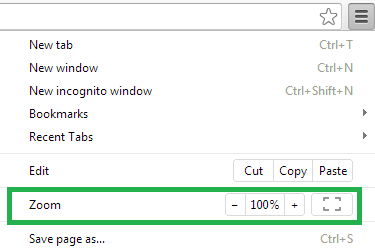
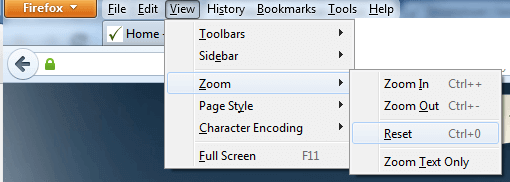
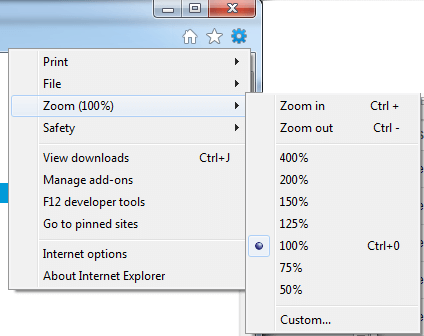
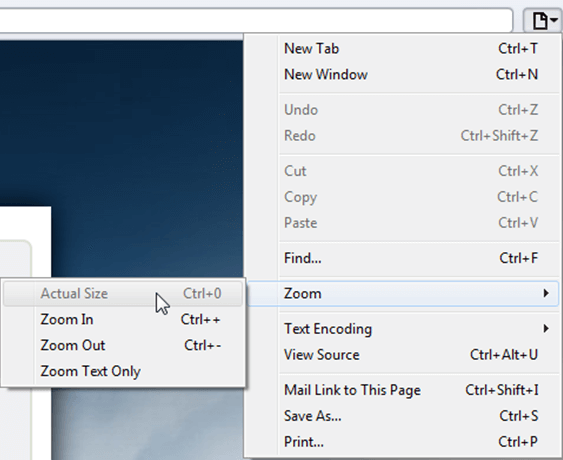
Choosing a zoom level of anything other than 100% (the default) can cause problems in pages where we render PDF pages.
If you are warned about it, reset the browser zoom to 100%.
The quickest way to return your browser to this zoom setting is to use the keyboard shortcut Ctrl + 0 on Windows or Cmd + 0 on Mac.
Additional browser-specific instructions for changing the zoom level are detailed below.
Chrome
Firefox
Internet Explorer
Safari
Sejda Desktop - Loading local fonts failed
Sejda Desktop fails to load the fonts installed on your system?
Windows 7: Please install "Platform update for Windows 7 SP1": https://support.microsoft.com/en-us/kb/2670838.
Linux: Please install libfontconfig-dev: sudo apt-get install libfontconfig-dev
Sejda Desktop - Add your fonts
Sejda Desktop can use your custom fonts when editing PDF documents.
1) Install the font on your system. See help for Windows or Mac.
2) Open Sejda Desktop, then open a PDF document with the Editor.
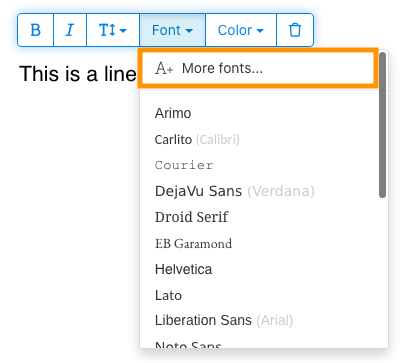
3) Type text on the page. From the context menu select "Fonts > More fonts".
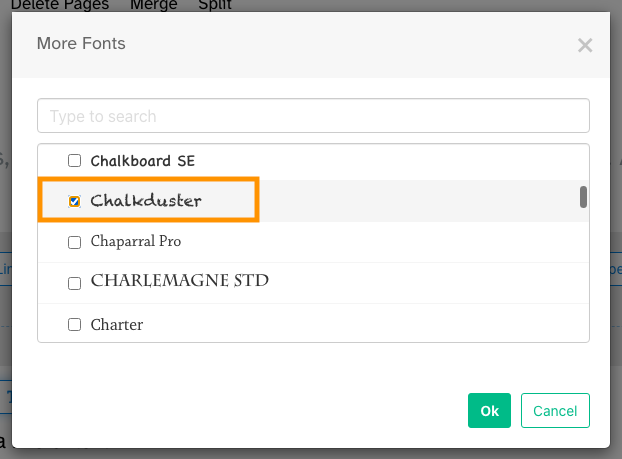
4) Select the font you would like to use and click "OK".
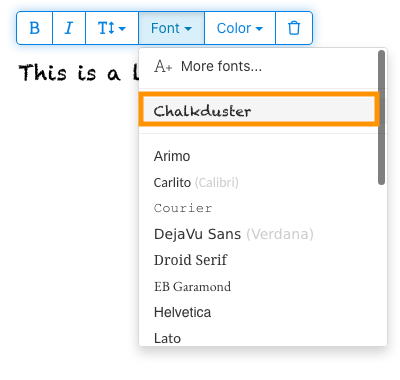
5) Click on the newly added font to use it for your text.
How long does it take for a refund to be processed?
It can take anywhere from 5-10 business days for a refund to show up on your bank account.
In some cases, the refund might be processed as a reversal, meaning the original payment will disappear from the account statement entirely and the balance will reflect as though the charge never occurred.
If you do not see the refund after 10 business days and you are still seeing the original charge on your bank statement, please reach out to support for more information.
How can you delete your FastSpring data?
If you've placed an order through FastSpring, our online authorized reseller & merchant of record, you can send your data erasure request to privacy@fastspring.com.
Malwarebytes interfering with Sejda Desktop?
Do you have Malwarebytes installed?
Please try temporarily turning Malwarebytes off and see if that solves the problem: Instructions here
You can report this problem with Malwarebytes: Report false positive
Could not convert: Page uses CAPTCHAs
The website you are trying to convert uses CAPTCHAs to block automated robots (such as our converter) from visiting their website.
There is no work around this.
See if the browser extension helps with your use-case:
HTML to PDF browser-extension
Install Linux OCR engine
Sejda Desktop does not ship with an embedded OCR engine on Linux, it uses the one available on the system.
To install an OCR engine, please run the following command:
sudo apt-get install -y tesseract-ocr tesseract-ocr-all
Once the command completes, return to Sejda Desktop and run your OCR task again.
Install Linux OCR language data
The OCR engine is installed successfully, but it is missing language data.
To install language data, please run the following command:
sudo apt-get install -y tesseract-ocr-all
About 667M of data will be downloaded and installed.
Once the command completes, return to Sejda Desktop and run your OCR task again.
מבקשים ממני להזין את ה-owner password
למה מבקשים ממני סיסמה?
בחלק ממסמכי ה-PDF יש הגדרות אבטחה שמגבילות פעולות מסוימות, כמו הדפסה, העתקת טקסט, עריכה או הוספת הערות. ההגבלות האלה נקבעו על ידי יוצר המסמך כדי לשלוט באופן השימוש והשיתוף של התוכן.
כשאנחנו מזהים של-PDF יש את ההגבלות האלה, אנחנו מבקשים את ה-owner password. הזנת הסיסמה הזו פותחת את המסמך ומעניקה גישה מלאה לכל הפיצ'רים וההרשאות. השלב הזה מבטיח שרק אנשים מורשים יוכלו לשנות או להסיר את ההגבלות שקבע המחבר המקורי.
מה זה owner password?
owner password נקבעת על ידי יוצר ה-PDF כדי למנוע שינויים לא מורשים במסמך. היא שונה מ-user password, שמגבילה את עצם פתיחת המסמך. אם יש לך את ה-owner password, זה אומר שיש לך הרשאה מלאה למסמך.
מה אם אין לי את ה-owner password?
אם אין לך את ה-owner password, תמשיך לקבל גישה מוגבלת לפי ההגבלות שהוגדרו ב-PDF.
כדי לקבל גישה מלאה, עליך להשיג גרסה לא נעולה של המסמך.
איך אפשר להימנע מהקלדה חוזרת של ה-owner password בכל פעם?
אפשר להשתמש בכלי PDF unlocker כדי להסיר את הגבלות ההרשאה מהמסמך שלך. עושים את זה רק פעם אחת. אחרי זה לא תתבקש יותר להזין את ה-owner password עבור המסמך הזה.
פתח את מסמך ה-PDF ב-Google Chrome, לחץ על Ctrl+P להדפסה, בחר ב-"Destination" את "Save as PDF" בצד ימין למעלה, ואז לחץ על "Save".
האם רכישת תוכנית בתשלום תפתור את הבעיה?
לא, עדיין תתבקש להזין את ה-owner password גם אם יש לך תוכנית בתשלום אצלנו.
אתם יכולים להגיד לי מה ה-owner password?
לא, אנחנו לא יודעים מה ה-owner password של המסמכים שלך. ה-owner password נבחרה על ידי האדם שיצר את המסמך שלך, והיא שונה מסיסמת ה-login שלך.
אני לא מצליח לערוך או להמיר מסמך סרוק
למה אי אפשר לערוך או להמיר מסמכים סרוקים?
כשסורקים מסמך פיזי כדי ליצור PDF, הסורק מצלם תמונה של כל עמוד. התהליך הזה הופך את הטקסט, הגרפיקה והעיצוב לקובץ תמונה יחיד שמוטמע בתוך ה-PDF. בניגוד למסמכי PDF רגילים, שבהם הטקסט נשמר כתווים ושורות שניתן לבחור, להעתיק ולערוך, מסמכי PDF סרוקים מתייחסים לכל עמוד כתמונה אחת גדולה.
מכיוון שהטקסט ב-PDF סרוק הוא חלק מתמונה, עורכי PDF לא יכולים לזהות או לשנות אותו ישירות. התוכנה רואה רק אוסף פיקסלים, ולא אותיות או מילים שניתן להבחין ביניהן. זה הופך את עריכת פסקאות הטקסט או ביצוע שינויים לבלתי אפשריים, בניגוד למסמך PDF רגיל מבוסס טקסט.
איך יודעים אם מסמך הוא סריקה?
דרך אחת לדעת אם PDF הוא תמונה סרוקה היא לפתוח אותו בתוכנת צפייה ב-PDF ולנסות לבחור את הטקסט עם העכבר. ב-PDF שניתן לעריכה, אפשר לסמן טקסט על ידי לחיצה וגרירה של הסמן עליו. אם אי אפשר לבחור טקסט והעמוד כולו מתנהג כמו תמונה אחת, כנראה מדובר במסמך סרוק.
הערה: חלק מהמסמכים הסרוקים עוברים עיבוד ב-OCR כדי להפוך לסריקות "searchable", שבהן ניתן לבחור טקסט ולחפש. עם זאת, המסמכים האלה הם עדיין סריקות ואי אפשר לערוך או להמיר אותם כמו PDF רגיל.
אני בטוח שהמסמך שלי הוא לא סריקה
חלק מהמסמכים נראים כמו סריקות כי התוכן שלהם מוטמע כתמונות בכל עמוד. זה יכול לקרות במסמכים שנוצרו מצילומי מסך או כשהטקסט הומר לקווי מתאר (outlines) במקום להיות מוטמע כטקסט שניתן לעריכה.
למרות שמבחינה טכנית אלו לא סריקות, הם מתפקדים באופן דומה. לצערינו, אנחנו לא תומכים בעריכה או בהמרה של סוגי מסמכים כאלה.
האם רכישת תוכנית בתשלום תפתור את הבעיה?
לא, שדרוג לתוכנית בתשלום לא יאפשר לך לערוך או להמיר מסמכים סרוקים. עריכה או המרה של סריקות אינה נתמכת, ללא קשר לרמת המנוי שלך.
אני בטוח שהצלחתי לערוך את המסמך הזה בעבר
מעולם לא תמכנו בעריכה או בהמרה של מסמכים סרוקים. אם הצלחת לערוך את המסמך בעבר, כנראה שהוא יוצא ל-PDF בצורה שונה מהמסמך הנוכחי.
Sejda Desktop נכשל בגלל permissions
ישנן 2 סיבות נפוצות לשגיאה זו: permissions לא מספיקים או הפרעה של האנטי-וירוס.
הרשאות חסרות: ייתכן שצריך להריץ את Sejda Desktop עם Administrator privileges. קליק ימני על האפליקציה, ואז בחירה ב-"עוד" > "Run as administrator".
תוכנת אנטי-וירוס או אבטחה: כדאי לנסות להשבית זמנית את האנטי-וירוס כדי לבדוק אם זה פותר את הבעיה.
התקנת Sejda Desktop על Chromebook
ניתן להתקין את Sejda Desktop על Chromebook באמצעות סביבת הפיתוח של Linux (הידועה גם בשם Crostini).
דרישות
ה-Chromebook שלך חייב לכלול סביבת פיתוח Linux פעילה. כדי להפעיל, עבור אל Settings ← Advanced ← Developers ← Linux development environment ופעל לפי שלבי ההגדרה.
לא כל מכשירי ה-Chromebook תומכים ב-Linux. בדגמים ישנים או פשוטים יותר ייתכן שהאפשרות לא תהיה זמינה.
1. הורד את גרסת ה-Linux (.deb)
2. התקן ב-Terminal
פתח את אפליקציית ה-Linux Terminal והרצ:
cd ~/Downloads
sudo dpkg -i sejda-desktop_*.deb
sudo apt -f install
3. הרץ אותה
sejda-desktop
או הפעל אותה מתיקיית ה-Linux apps בלאנצ'ר של ChromeOS.
פתרון תקלות: האפליקציה לא נפתחת
אם Sejda Desktop לא מופיעה או לא מצליחה לפתוח חלון, התקן את ספריות ה-GUI החסרות:
sudo apt install -y libgconf-2-4 libatk1.0-0 libatk-bridge2.0-0
תכונות OCR
Sejda Desktop ב-Linux משתמשת במנוע ה-OCR של המערכת.
ראה הוראות עבור Install Linux OCR engine