
Help & Knowledge Base
Customizing Result File Names
Special keywords can be used as placeholders in the output file names, to be replaced with dynamic values during the execution.
A trivial example is prefixing each document with the page number, when splitting.
[CURRENTPAGE]
A reference to the current page number in the input document.
Example: [CURRENTPAGE###] will generate filesnames like 001.pdf, 002.pdf.
Example: [CURRENTPAGE##] generates 01.pdf, 02.pdf, etc.
[TIMESTAMP]
Ensures unique output filenames, being replaced with current date & time.
[FILENUMBER]
Ensures unique output filenames, replaced with a file number according to the output order.
Example: [FILENUMBER###] generates 001, 002
Example: [FILENUMBER13] starts with the counter at 13, generating 13, 14,
etc.
[BASENAME]
Does not ensure unique output filenames, and it must be used together with other placeholders ensuring unique names. It is replaced with original name of the input document, without the extension.
Example: [CURRENTPAGE]_[BASENAME] would generate 1_input-file.pdf, 3_input-file.pdf,
etc.
[BOOKMARK_NAME]
This pattern is replaced by current bookmark's name. Only applicable in the "Split by bookmarks" tool.
[BOOKMARK_NAME_STRICT]
Same behavior as [BOOKMARK_NAME] with the difference that non-alphanumberic characters are
removed.
Example: [CURRENTPAGE]-[BOOKMARK_NAME] would generate 1-Introduction.pdf, 4-Chapter
1.pdf, etc.
[TEXT]
This pattern is applicable only in the "Split by text" tool. It is replaced with the text found in the page area selected.
Example: [CURRENTPAGE]-[TEXT] would generate 1-Invoice 3456789.pdf, 4-Invoice
234567.pdf, etc.
[TEXT1], [TEXT2], etc.
This pattern is applicable only in the "Rename" tool. It is replaced with the text found in the selected area.
Example: [TEXT2]-[TEXT1] would generate John Doe-Invoice 3456789.pdf, Jane Doe-Invoice
234567.pdf, etc.
Sejda Desktop Enterprise Install
To deploy Sejda Desktop in an enterprise environment using a pre-configured volume license key use this command:
msiexec /i sejda-desktop_x.y.z_x64.msi LICENSE_KEY="1234-ABCD-1234-ABCD"
Any options provided will be configured machine-wide and will apply for all users on the system.
| LICENSE_KEY | License key | LICENSE_KEY="1234-ABCD-1234-ABCD" |
| LOCALE | UI language | en, es, de, fr,it or pt |
| UPDATE_CHECK | Disables checking for new versions | UPDATE_CHECK="false" |
| DISABLED_FEATURES | List of features to be disabled | DISABLED_FEATURES="edit.whiteout" |
| EULA_ACCEPTED | Accept EULA and no longer prompt on first use | EULA_ACCEPTED="true" |
| AUTO_REPORT_ERRORS | Configure automated error reporting and no longer prompt on first use | AUTO_REPORT_ERRORS="false" |
Resetting Browser Zoom
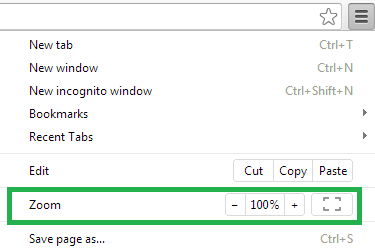
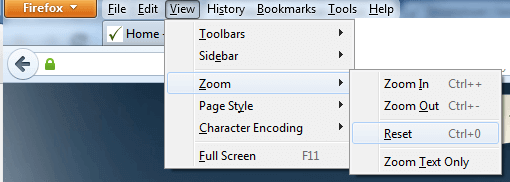
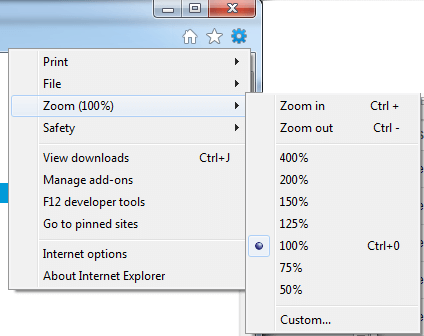
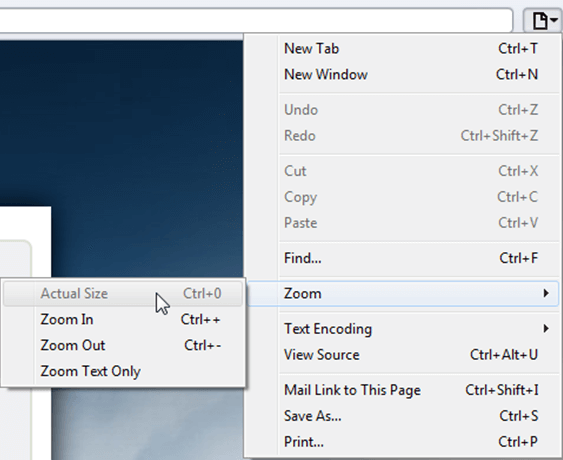
Choosing a zoom level of anything other than 100% (the default) can cause problems in pages where we render PDF pages.
If you are warned about it, reset the browser zoom to 100%.
The quickest way to return your browser to this zoom setting is to use the keyboard shortcut Ctrl + 0 on Windows or Cmd + 0 on Mac.
Additional browser-specific instructions for changing the zoom level are detailed below.
Chrome
Firefox
Internet Explorer
Safari
Sejda Desktop - Loading local fonts failed
Sejda Desktop fails to load the fonts installed on your system?
Windows 7: Please install "Platform update for Windows 7 SP1": https://support.microsoft.com/en-us/kb/2670838.
Linux: Please install libfontconfig-dev: sudo apt-get install libfontconfig-dev
Sejda Desktop - Add your fonts
Sejda Desktop can use your custom fonts when editing PDF documents.
1) Install the font on your system. See help for Windows or Mac.
2) Open Sejda Desktop, then open a PDF document with the Editor.
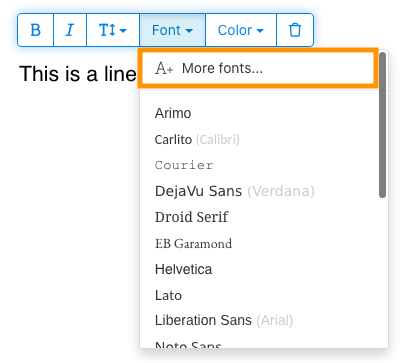
3) Type text on the page. From the context menu select "Fonts > More fonts".
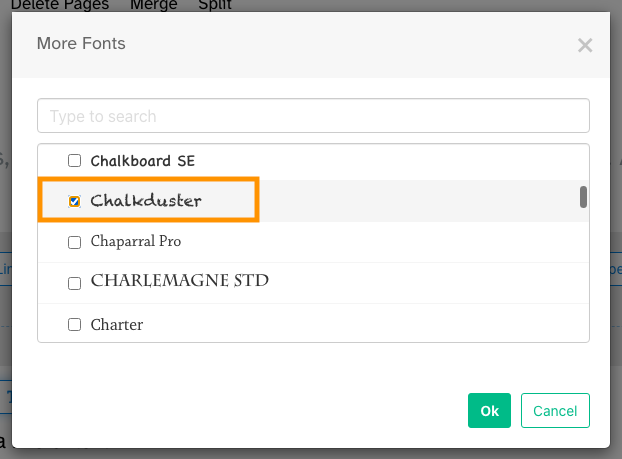
4) Select the font you would like to use and click "OK".
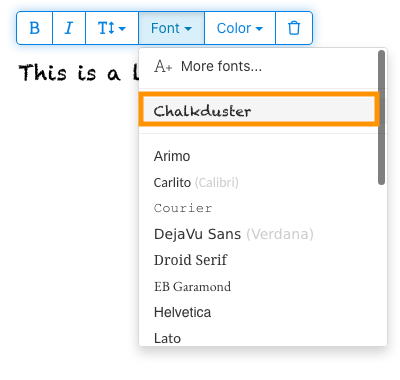
5) Click on the newly added font to use it for your text.
How long does it take for a refund to be processed?
It can take anywhere from 5-10 business days for a refund to show up on your bank account.
In some cases, the refund might be processed as a reversal, meaning the original payment will disappear from the account statement entirely and the balance will reflect as though the charge never occurred.
If you do not see the refund after 10 business days and you are still seeing the original charge on your bank statement, please reach out to support for more information.
How can you delete your FastSpring data?
If you've placed an order through FastSpring, our online authorized reseller & merchant of record, you can send your data erasure request to privacy@fastspring.com.
Malwarebytes interfering with Sejda Desktop?
Do you have Malwarebytes installed?
Please try temporarily turning Malwarebytes off and see if that solves the problem: Instructions here
You can report this problem with Malwarebytes: Report false positive
Could not convert: Page uses CAPTCHAs
The website you are trying to convert uses CAPTCHAs to block automated robots (such as our converter) from visiting their website.
There is no work around this.
See if the browser extension helps with your use-case:
HTML to PDF browser-extension
Install Linux OCR engine
Sejda Desktop does not ship with an embedded OCR engine on Linux, it uses the one available on the system.
To install an OCR engine, please run the following command:
sudo apt-get install -y tesseract-ocr tesseract-ocr-all
Once the command completes, return to Sejda Desktop and run your OCR task again.
Install Linux OCR language data
The OCR engine is installed successfully, but it is missing language data.
To install language data, please run the following command:
sudo apt-get install -y tesseract-ocr-all
About 667M of data will be downloaded and installed.
Once the command completes, return to Sejda Desktop and run your OCR task again.
Μου ζητείται να εισαγάγω τον κωδικό ιδιοκτήτη
Γιατί μου ζητείται κωδικός;
Ορισμένα έγγραφα PDF διαθέτουν ρυθμίσεις ασφαλείας που περιορίζουν ορισμένες ενέργειες, όπως την εκτύπωση, την αντιγραφή κειμένου, την επεξεργασία ή την προσθήκη σχολίων. Αυτοί οι περιορισμοί εφαρμόζονται από τον δημιουργό του εγγράφου για τον έλεγχο της χρήσης και της κοινής χρήσης του περιεχομένου.
Όταν εντοπίζουμε ότι ένα PDF έχει αυτούς τους περιορισμούς, σου ζητάμε τον κωδικό ιδιοκτήτη. Η εισαγωγή αυτού του κωδικού ξεκλειδώνει το έγγραφο και παρέχει πλήρη πρόσβαση σε όλες τις λειτουργίες και τα δικαιώματα. Αυτό το βήμα διασφαλίζει ότι μόνο εξουσιοδοτημένα άτομα μπορούν να τροποποιήσουν ή να αφαιρέσουν τους περιορισμούς που έθεσε ο αρχικός συντάκτης.
Τι είναι ο κωδικός ιδιοκτήτη;
Ο κωδικός ιδιοκτήτη ορίζεται από τον δημιουργό του PDF για να αποτρέψει μη εξουσιοδοτημένες αλλαγές στο έγγραφο. Διαφέρει από τον κωδικό χρήστη, ο οποίος περιορίζει τελείως το άνοιγμα του εγγράφου. Αν έχεις τον κωδικό ιδιοκτήτη, σημαίνει ότι έχεις πλήρη πρόσβαση στο έγγραφο.
Τι γίνεται αν δεν έχω τον κωδικό ιδιοκτήτη;
Αν δεν έχεις τον κωδικό ιδιοκτήτη, θα συνεχίσεις να έχεις περιορισμένη πρόσβαση βάσει των περιορισμών που έχουν οριστεί στο PDF.
Για να αποκτήσεις πλήρη πρόσβαση, ζήτησε μια ξεκλείδωτη έκδοση του εγγράφου.
Πώς μπορώ να αποφύγω να πληκτρολογώ επανειλημμένα τον κωδικό ιδιοκτήτη κάθε φορά;
Μπορείς να χρησιμοποιήσεις ένα εργαλείο PDF unlocker για να αφαιρέσεις τους περιορισμούς δικαιωμάτων από το έγγραφό σου. Το κάνεις αυτό μόνο μία φορά. Μετά δεν θα σου ξαναζητηθεί ο κωδικός ιδιοκτήτη για αυτό το έγγραφο.
Άνοιξε το έγγραφο PDF στο Google Chrome, πάτα Ctrl+P για εκτύπωση, επίλεξε στο "Destination" την επιλογή "Save as PDF" πάνω δεξιά και μετά κάνε κλικ στο "Save".
Θα λυθεί το πρόβλημα αν αγοράσω ένα συνδρομητικό πλάνο;
Όχι, θα σου ζητείται ο κωδικός ιδιοκτήτη ακόμα και αν έχεις πληρωμένο πλάνο σε εμάς.
Μπορείτε να μου πείτε τον κωδικό ιδιοκτήτη;
Όχι, δεν γνωρίζουμε τον κωδικό ιδιοκτήτη για τα έγγραφά σου. Ο κωδικός ιδιοκτήτη επιλέχθηκε από το άτομο που δημιούργησε το έγγραφό σου και είναι διαφορετικός από τον κωδικό σύνδεσής σου.
Δεν μπορώ να επεξεργαστώ ή να μετατρέψω ένα σκαναρισμένο έγγραφο
Γιατί τα σκαναρισμένα έγγραφα δεν μπορούν να επεξεργαστούν ή να μετατραπούν;
Όταν σκανάρεις ένα φυσικό έγγραφο για να δημιουργήσεις ένα PDF, ο σαρωτής τραβάει μια εικόνα της κάθε σελίδας. Αυτή η διαδικασία μετατρέπει το κείμενο, τα γραφικά και τη διάταξη σε ένα ενιαίο αρχείο εικόνας ενσωματωμένο στο PDF. Σε αντίθεση με τα τυπικά PDF, όπου το κείμενο αποθηκεύεται ως μεμονωμένοι χαρακτήρες και γραμμές που μπορούν να επιλεγούν και να επεξεργαστούν, τα σκαναρισμένα PDF θεωρούν κάθε σελίδα ως μια μεγάλη εικόνα.
Επειδή το κείμενο σε ένα σκαναρισμένο PDF είναι μέρος μιας εικόνας, οι επεξεργαστές PDF δεν μπορούν να το αναγνωρίσουν ή να το τροποποιήσουν απευθείας. Το λογισμικό βλέπει μόνο μια συλλογή από pixel, όχι διακριτά γράμματα ή λέξεις. Αυτό καθιστά αδύνατη την επεξεργασία παραγράφων κειμένου ή την πραγματοποίηση αλλαγών όπως σε ένα κανονικό έγγραφο PDF που βασίζεται σε κείμενο.
Πώς να καταλάβεις αν ένα έγγραφο είναι σκαναρισμένο;
Ένας τρόπος για να διαπιστώσεις αν ένα PDF είναι σκαναρισμένη εικόνα είναι να το ανοίξεις με έναν PDF viewer και να προσπαθήσεις να επιλέξεις το κείμενο με το ποντίκι σου. Σε ένα επεξεργάσιμο PDF, μπορείς να επισημάνεις κείμενο κάνοντας κλικ και σέρνοντας τον κέρσορα πάνω του. Αν δεν μπορείς να επιλέξεις κείμενο και ολόκληρη η σελίδα συμπεριφέρεται σαν μια ενιαία εικόνα, είναι πιθανώς σκαναρισμένο έγγραφο.
Σημείωση: Ορισμένα σκαναρισμένα έγγραφα υφίστανται επεξεργασία με Optical Character Recognition (OCR) για να γίνουν "searchable", ώστε το κείμενο να μπορεί να επιλεγεί και να αναζητηθεί. Ωστόσο, αυτά τα έγγραφα παραμένουν σκαναρίσματα και δεν μπορούν να επεξεργαστούν ή να μετατραπούν όπως τα τυπικά PDF.
Είμαι σίγουρος ότι το έγγραφό μου δεν είναι σκαναρισμένο
Ορισμένα έγγραφα μοιάζουν με σκαναρίσματα επειδή το περιεχόμενό τους είναι ενσωματωμένο ως εικόνες σε κάθε σελίδα. Αυτό μπορεί να συμβεί με έγγραφα που δημιουργήθηκαν από screenshots ή όταν το κείμενο έχει μετατραπεί σε περιγράμματα αντί να είναι ενσωματωμένο ως επεξεργάσιμο κείμενο.
Αν και τεχνικά δεν είναι σκαναρίσματα, λειτουργούν με παρόμοιο τρόπο. Δυστυχώς, δεν υποστηρίζουμε ούτε την επεξεργασία ή τη μετατροπή αυτών των τύπων εγγράφων.
Θα λυθεί το πρόβλημα αν αγοράσω ένα συνδρομητικό πλάνο;
Όχι, η αναβάθμιση σε πληρωμένο πλάνο δεν θα σου επιτρέψει να επεξεργαστείς ή να μετατρέψεις σκαναρισμένα έγγραφα. Η επεξεργασία ή η μετατροπή σκαναρισμένων αρχείων δεν υποστηρίζεται, ανεξάρτητα από το επίπεδο της συνδρομής σου.
Είμαι σίγουρος ότι μπορούσα να επεξεργαστώ αυτό το έγγραφο παλαιότερα
Ποτέ δεν υποστηρίζαμε την επεξεργασία ή τη μετατροπή σκαναρισμένων εγγράφων. Αν μπορούσες να επεξεργαστείς το έγγραφο πριν, είναι πιθανό να είχε εξαχθεί σε PDF με διαφορετικό τρόπο από ό,τι το τρέχον έγγραφο.
Το Sejda Desktop αποτυγχάνει λόγω δικαιωμάτων
Υπάρχουν 2 κοινές αιτίες για αυτό το σφάλμα: ανεπαρκή δικαιώματα ή παρεμβολή από antivirus.
Ανεπαρκή δικαιώματα: Ίσως χρειαστεί να τρέξεις το Sejda Desktop με δικαιώματα Διαχειριστή. Δεξί κλικ στην εφαρμογή, μετά "Περισσότερα" > "Εκτέλεση ως διαχειριστής".
Λογισμικό Antivirus ή Ασφαλείας: Δοκίμασε να απενεργοποιήσεις προσωρινά το antivirus για να δεις αν αυτό λύνει το πρόβλημα.
Εγκατάσταση του Sejda Desktop σε Chromebook
Το Sejda Desktop μπορεί να εγκατασταθεί σε Chromebook χρησιμοποιώντας το περιβάλλον ανάπτυξης Linux (γνωστό και ως Crostini).
Προϋποθέσεις
Το Chromebook σου πρέπει να έχει ενεργοποιημένο το περιβάλλον ανάπτυξης Linux. Για να το ενεργοποιήσεις, πήγαινε στο Settings → Advanced → Developers → Linux development environment και ακολούθησε τα βήματα.
Δεν υποστηρίζουν όλα τα Chromebook Linux. Παλαιότερα ή οικονομικότερα μοντέλα μπορεί να μην έχουν αυτή την επιλογή.
1. Κατέβασε την έκδοση Linux (.deb)
2. Εγκατάστασή του στο Terminal
Άνοιξε την εφαρμογή Linux Terminal και τρέξε:
cd ~/Downloads
sudo dpkg -i sejda-desktop_*.deb
sudo apt -f install
3. Τρέξε το
sejda-desktop
Ή ξεκίνησέ το από τον φάκελο εφαρμογών Linux στον launcher του ChromeOS.
Αντιμετώπιση προβλημάτων: η εφαρμογή δεν ανοίγει
Αν το Sejda Desktop δεν εμφανίζεται ή δεν ανοίγει παράθυρο, εγκατάστησε τις βιβλιοθήκες GUI που λείπουν:
sudo apt install -y libgconf-2-4 libatk1.0-0 libatk-bridge2.0-0
Λειτουργίες OCR
Το Sejda Desktop στο Linux χρησιμοποιεί τη μηχανή OCR του συστήματος.
Δες το Install Linux OCR engine για οδηγίες