
Help & Knowledge Base
Customizing Result File Names
Special keywords can be used as placeholders in the output file names, to be replaced with dynamic values during the execution.
A trivial example is prefixing each document with the page number, when splitting.
[CURRENTPAGE]
A reference to the current page number in the input document.
Example: [CURRENTPAGE###] will generate filesnames like 001.pdf, 002.pdf.
Example: [CURRENTPAGE##] generates 01.pdf, 02.pdf, etc.
[TIMESTAMP]
Ensures unique output filenames, being replaced with current date & time.
[FILENUMBER]
Ensures unique output filenames, replaced with a file number according to the output order.
Example: [FILENUMBER###] generates 001, 002
Example: [FILENUMBER13] starts with the counter at 13, generating 13, 14,
etc.
[BASENAME]
Does not ensure unique output filenames, and it must be used together with other placeholders ensuring unique names. It is replaced with original name of the input document, without the extension.
Example: [CURRENTPAGE]_[BASENAME] would generate 1_input-file.pdf, 3_input-file.pdf,
etc.
[BOOKMARK_NAME]
This pattern is replaced by current bookmark's name. Only applicable in the "Split by bookmarks" tool.
[BOOKMARK_NAME_STRICT]
Same behavior as [BOOKMARK_NAME] with the difference that non-alphanumberic characters are
removed.
Example: [CURRENTPAGE]-[BOOKMARK_NAME] would generate 1-Introduction.pdf, 4-Chapter
1.pdf, etc.
[TEXT]
This pattern is applicable only in the "Split by text" tool. It is replaced with the text found in the page area selected.
Example: [CURRENTPAGE]-[TEXT] would generate 1-Invoice 3456789.pdf, 4-Invoice
234567.pdf, etc.
[TEXT1], [TEXT2], etc.
This pattern is applicable only in the "Rename" tool. It is replaced with the text found in the selected area.
Example: [TEXT2]-[TEXT1] would generate John Doe-Invoice 3456789.pdf, Jane Doe-Invoice
234567.pdf, etc.
Sejda Desktop Enterprise Install
To deploy Sejda Desktop in an enterprise environment using a pre-configured volume license key use this command:
msiexec /i sejda-desktop_x.y.z_x64.msi LICENSE_KEY="1234-ABCD-1234-ABCD"
Any options provided will be configured machine-wide and will apply for all users on the system.
| LICENSE_KEY | License key | LICENSE_KEY="1234-ABCD-1234-ABCD" |
| LOCALE | UI language | en, es, de, fr,it or pt |
| UPDATE_CHECK | Disables checking for new versions | UPDATE_CHECK="false" |
| DISABLED_FEATURES | List of features to be disabled | DISABLED_FEATURES="edit.whiteout" |
| EULA_ACCEPTED | Accept EULA and no longer prompt on first use | EULA_ACCEPTED="true" |
| AUTO_REPORT_ERRORS | Configure automated error reporting and no longer prompt on first use | AUTO_REPORT_ERRORS="false" |
Resetting Browser Zoom
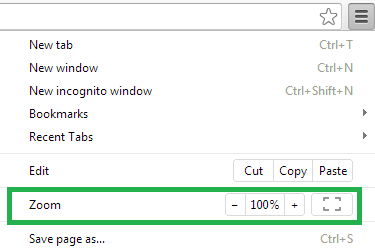
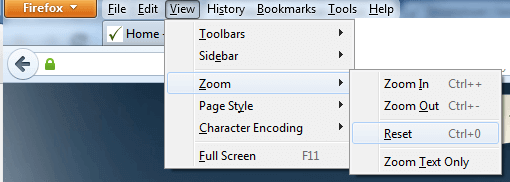
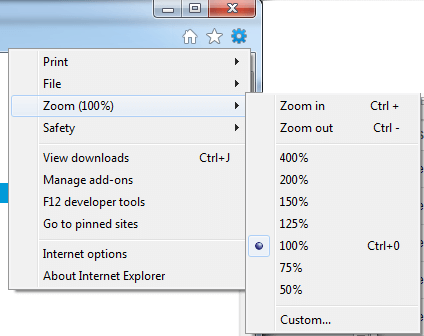
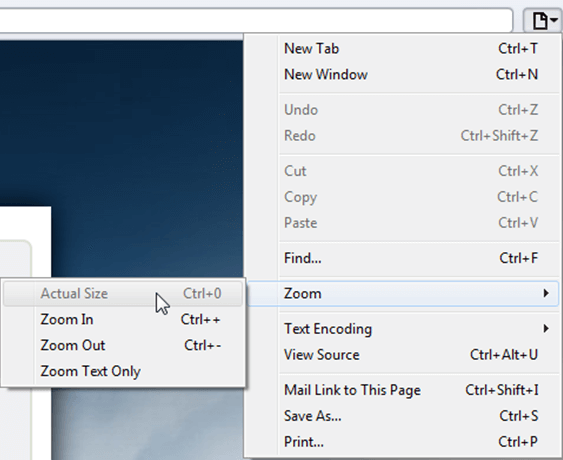
Choosing a zoom level of anything other than 100% (the default) can cause problems in pages where we render PDF pages.
If you are warned about it, reset the browser zoom to 100%.
The quickest way to return your browser to this zoom setting is to use the keyboard shortcut Ctrl + 0 on Windows or Cmd + 0 on Mac.
Additional browser-specific instructions for changing the zoom level are detailed below.
Chrome
Firefox
Internet Explorer
Safari
Sejda Desktop - Loading local fonts failed
Sejda Desktop fails to load the fonts installed on your system?
Windows 7: Please install "Platform update for Windows 7 SP1": https://support.microsoft.com/en-us/kb/2670838.
Linux: Please install libfontconfig-dev: sudo apt-get install libfontconfig-dev
Sejda Desktop - Add your fonts
Sejda Desktop can use your custom fonts when editing PDF documents.
1) Install the font on your system. See help for Windows or Mac.
2) Open Sejda Desktop, then open a PDF document with the Editor.
3) Type text on the page. From the context menu select "Fonts > More fonts".
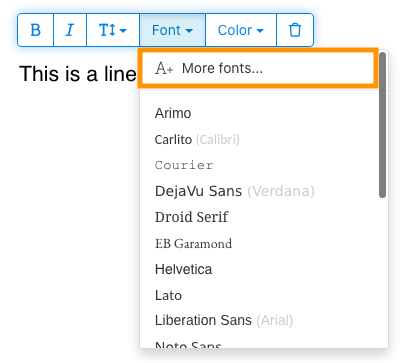
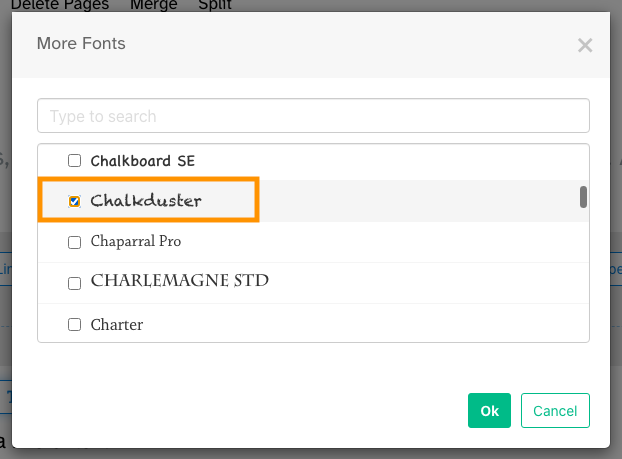
4) Select the font you would like to use and click "OK".
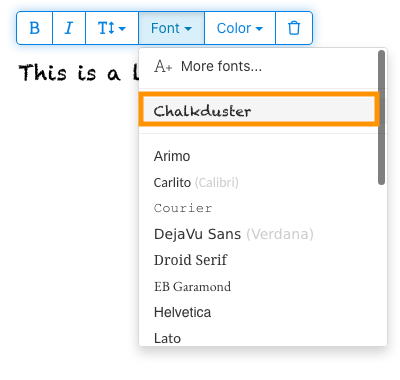
5) Click on the newly added font to use it for your text.
How long does it take for a refund to be processed?
It can take anywhere from 5-10 business days for a refund to show up on your bank account.
In some cases, the refund might be processed as a reversal, meaning the original payment will disappear from the account statement entirely and the balance will reflect as though the charge never occurred.
If you do not see the refund after 10 business days and you are still seeing the original charge on your bank statement, please reach out to support for more information.
How can you delete your FastSpring data?
If you've placed an order through FastSpring, our online authorized reseller & merchant of record, you can send your data erasure request to privacy@fastspring.com.
Malwarebytes interfering with Sejda Desktop?
Do you have Malwarebytes installed?
Please try temporarily turning Malwarebytes off and see if that solves the problem: Instructions here
You can report this problem with Malwarebytes: Report false positive
Could not convert: Page uses CAPTCHAs
The website you are trying to convert uses CAPTCHAs to block automated robots (such as our converter) from visiting their website.
There is no work around this.
See if the browser extension helps with your use-case:
HTML to PDF browser-extension
Install Linux OCR engine
Sejda Desktop does not ship with an embedded OCR engine on Linux, it uses the one available on the system.
To install an OCR engine, please run the following command:
sudo apt-get install -y tesseract-ocr tesseract-ocr-all
Once the command completes, return to Sejda Desktop and run your OCR task again.
Install Linux OCR language data
The OCR engine is installed successfully, but it is missing language data.
To install language data, please run the following command:
sudo apt-get install -y tesseract-ocr-all
About 667M of data will be downloaded and installed.
Once the command completes, return to Sejda Desktop and run your OCR task again.
Mi se cere să introduc parola de owner
De ce mi se cere o parolă?
Unele documente PDF au setări de securitate care restricționează anumite acțiuni, precum imprimarea, copierea textului, editarea sau adăugarea de adnotări. Aceste restricții sunt implementate de creatorul documentului pentru a controla modul în care conținutul este utilizat și partajat.
Când detectăm că un PDF are aceste restricții, îți cerem parola de owner. Introducerea acestei parole deblochează documentul și oferă acces complet la toate funcțiile și permisiunile. Acest pas asigură faptul că doar persoanele autorizate pot modifica sau elimina restricțiile setate de autorul original.
Ce este o parolă de owner?
O parolă de owner este setată de creatorul PDF-ului pentru a preveni modificările neautorizate ale documentului. Diferă de parola de utilizator, care restricționează deschiderea documentului cu totul. Dacă ai parola de owner, înseamnă că ai permisiune deplină asupra documentului.
Ce se întâmplă dacă nu am parola de owner?
Dacă nu ai parola de owner, vei avea în continuare acces limitat, bazat pe restricțiile setate în PDF.
Pentru a obține acces complet, obține o versiune deblocată a documentului.
Cum pot evita să introduc parola de owner de fiecare dată?
Poți folosi un instrument de deblocare PDF pentru a elimina restricțiile de permisiune din document. Faci asta o singură dată. Apoi nu ți se va mai cere parola de owner pentru acest document.
Deschide documentul PDF în Google Chrome, apasă Ctrl+P pentru print, alege la „Destinație” să fie „Salvează ca PDF” în partea dreaptă sus, apoi dă click pe „Salvează”.
Achiziționarea unui plan plătit va rezolva problema?
Nu, ți se va cere în continuare parola de owner chiar dacă ai un plan plătit la noi.
Îmi poți spune parola de owner?
Nu, nu știm parola de owner pentru documentele tale. Parola de owner a fost aleasă de persoana care a creat documentul și este diferită de parola ta de login.
Nu pot edita sau converti un document scanat
De ce documentele scanate nu pot fi editate sau convertite?
Când scanezi un document fizic pentru a crea un PDF, scanerul capturează o imagine a fiecărei pagini. Acest proces convertește textul, grafica și așezarea în pagină într-un singur fișier imagine încorporat în PDF. Spre deosebire de PDF-urile standard, unde textul e stocat ca caractere și linii individuale ce pot fi selectate, copiate și editate, PDF-urile scanate tratează fiecare pagină ca pe o singură imagine mare.
Deoarece textul dintr-un PDF scanat e parte dintr-o imagine, editoarele PDF nu îl pot recunoaște sau modifica direct. Software-ul vede doar o colecție de pixeli, nu litere sau cuvinte distincte. Asta face imposibilă editarea paragrafelor de text sau efectuarea de modificări ca într-un document PDF obișnuit, bazat pe text.
Cum determini dacă un document e o scanare?
O modalitate de a vedea dacă un PDF e o imagine scanată e să-l deschizi cu un vizualizator PDF și să încerci să selectezi textul cu mouse-ul. Într-un PDF editabil, poți evidenția textul făcând clic și trăgând cursorul peste el. Dacă nu poți selecta niciun text și întreaga pagină se comportă ca o singură imagine, probabil e un document scanat.
Notă: Unele documente scanate sunt procesate cu Recunoaștere Optică a Caracterelor (OCR) pentru a deveni scanări „căutabile”, unde textul poate fi selectat și căutat. Totuși, aceste documente sunt tot scanări și nu pot fi editate sau convertite ca PDF-urile standard.
Sunt sigur că documentul meu nu e o scanare
Unele documente seamănă cu scanările deoarece conținutul lor e încorporat sub formă de imagini pe fiecare pagină. Asta se poate întâmpla cu documentele create din screenshot-uri sau când textul a fost convertit în contururi în loc să fie încorporat ca text editabil.
Deși tehnic acestea nu sunt scanări, funcționează similar. Din păcate, nici noi nu suportăm editarea sau convertirea acestor tipuri de documente.
Achiziționarea unui plan plătit va rezolva problema?
Nu, trecerea la un plan plătit nu îți va permite să editezi sau să convertești documente scanate. Editarea sau convertirea scanărilor nu este suportată, indiferent de nivelul abonamentului tău.
Sunt sigur că am putut edita acest document anterior
Nu am suportat niciodată editarea sau convertirea documentelor scanate. Dacă ai putut edita documentul înainte, probabil că a fost exportat în PDF diferit față de documentul actual.
Sejda Desktop eșuează din cauza permisiunilor
Există 2 cauze frecvente pentru această eroare: permisiuni insuficiente sau interferența antivirusului.
Permisiuni insuficiente: S-ar putea să fie nevoie să rulezi Sejda Desktop cu privilegii de Administrator. Click dreapta pe aplicație, apoi alege „Mai multe” > „Executare ca administrator”.
Software Antivirus sau de Securitate: Încearcă să dezactivezi temporar antivirusul pentru a verifica dacă asta ajută la rezolvarea problemei.
Instalează Sejda Desktop pe Chromebook
Sejda Desktop poate fi instalat pe un Chromebook folosind mediul de dezvoltare Linux (cunoscut și sub numele de Crostini).
Cerințe
Chromebook-ul tău trebuie să aibă activat mediul de dezvoltare Linux. Pentru activare, mergi la Settings → Advanced → Developers → Linux development environment și urmează pașii de configurare.
Nu toate Chromebook-urile suportă Linux. Modelele mai vechi sau mai ieftine s-ar putea să nu aibă această opțiune.
1. Descarcă versiunea Linux (.deb)
2. Instalează din Terminal
Deschide aplicația Linux Terminal și rulează:
cd ~/Downloads
sudo dpkg -i sejda-desktop_*.deb
sudo apt -f install
3. Rulează aplicația
sejda-desktop
Sau pornește-o din folderul Linux apps din ChromeOS launcher.
Depanare: aplicația nu se deschide
Dacă Sejda Desktop nu apare sau nu deschide o fereastră, instalează bibliotecile GUI lipsă:
sudo apt install -y libgconf-2-4 libatk1.0-0 libatk-bridge2.0-0
Funcții OCR
Sejda Desktop pe Linux folosește motorul OCR al sistemului.
Vezi instrucțiunile pentru Install Linux OCR engine