
Help & Knowledge Base
Customizing Result File Names
Special keywords can be used as placeholders in the output file names, to be replaced with dynamic values during the execution.
A trivial example is prefixing each document with the page number, when splitting.
[CURRENTPAGE]
A reference to the current page number in the input document.
Example: [CURRENTPAGE###] will generate filesnames like 001.pdf, 002.pdf.
Example: [CURRENTPAGE##] generates 01.pdf, 02.pdf, etc.
[TIMESTAMP]
Ensures unique output filenames, being replaced with current date & time.
[FILENUMBER]
Ensures unique output filenames, replaced with a file number according to the output order.
Example: [FILENUMBER###] generates 001, 002
Example: [FILENUMBER13] starts with the counter at 13, generating 13, 14,
etc.
[BASENAME]
Does not ensure unique output filenames, and it must be used together with other placeholders ensuring unique names. It is replaced with original name of the input document, without the extension.
Example: [CURRENTPAGE]_[BASENAME] would generate 1_input-file.pdf, 3_input-file.pdf,
etc.
[BOOKMARK_NAME]
This pattern is replaced by current bookmark's name. Only applicable in the "Split by bookmarks" tool.
[BOOKMARK_NAME_STRICT]
Same behavior as [BOOKMARK_NAME] with the difference that non-alphanumberic characters are
removed.
Example: [CURRENTPAGE]-[BOOKMARK_NAME] would generate 1-Introduction.pdf, 4-Chapter
1.pdf, etc.
[TEXT]
This pattern is applicable only in the "Split by text" tool. It is replaced with the text found in the page area selected.
Example: [CURRENTPAGE]-[TEXT] would generate 1-Invoice 3456789.pdf, 4-Invoice
234567.pdf, etc.
[TEXT1], [TEXT2], etc.
This pattern is applicable only in the "Rename" tool. It is replaced with the text found in the selected area.
Example: [TEXT2]-[TEXT1] would generate John Doe-Invoice 3456789.pdf, Jane Doe-Invoice
234567.pdf, etc.
Sejda Desktop Enterprise Install
To deploy Sejda Desktop in an enterprise environment using a pre-configured volume license key use this command:
msiexec /i sejda-desktop_x.y.z_x64.msi LICENSE_KEY="1234-ABCD-1234-ABCD"
Any options provided will be configured machine-wide and will apply for all users on the system.
| LICENSE_KEY | License key | LICENSE_KEY="1234-ABCD-1234-ABCD" |
| LOCALE | UI language | en, es, de, fr,it or pt |
| UPDATE_CHECK | Disables checking for new versions | UPDATE_CHECK="false" |
| DISABLED_FEATURES | List of features to be disabled | DISABLED_FEATURES="edit.whiteout" |
| EULA_ACCEPTED | Accept EULA and no longer prompt on first use | EULA_ACCEPTED="true" |
| AUTO_REPORT_ERRORS | Configure automated error reporting and no longer prompt on first use | AUTO_REPORT_ERRORS="false" |
Resetting Browser Zoom
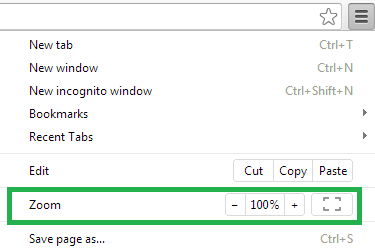
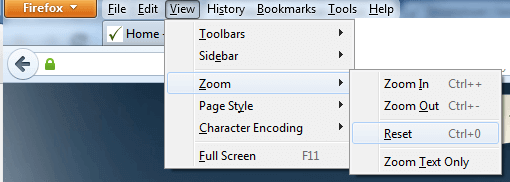
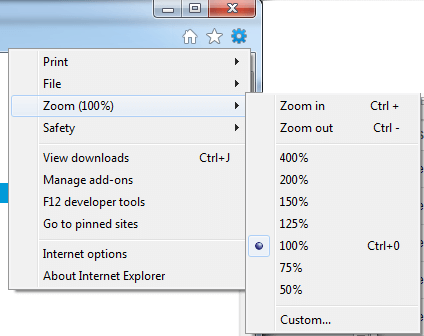
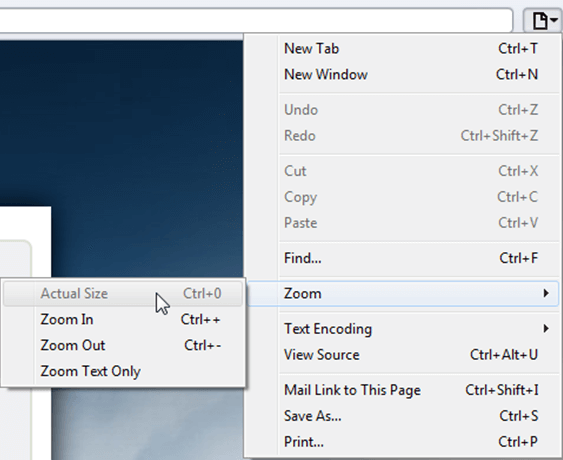
Choosing a zoom level of anything other than 100% (the default) can cause problems in pages where we render PDF pages.
If you are warned about it, reset the browser zoom to 100%.
The quickest way to return your browser to this zoom setting is to use the keyboard shortcut Ctrl + 0 on Windows or Cmd + 0 on Mac.
Additional browser-specific instructions for changing the zoom level are detailed below.
Chrome
Firefox
Internet Explorer
Safari
Sejda Desktop - Loading local fonts failed
Sejda Desktop fails to load the fonts installed on your system?
Windows 7: Please install "Platform update for Windows 7 SP1": https://support.microsoft.com/en-us/kb/2670838.
Linux: Please install libfontconfig-dev: sudo apt-get install libfontconfig-dev
Sejda Desktop - Add your fonts
Sejda Desktop can use your custom fonts when editing PDF documents.
1) Install the font on your system. See help for Windows or Mac.
2) Open Sejda Desktop, then open a PDF document with the Editor.
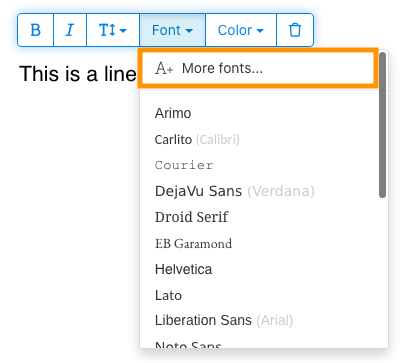
3) Type text on the page. From the context menu select "Fonts > More fonts".
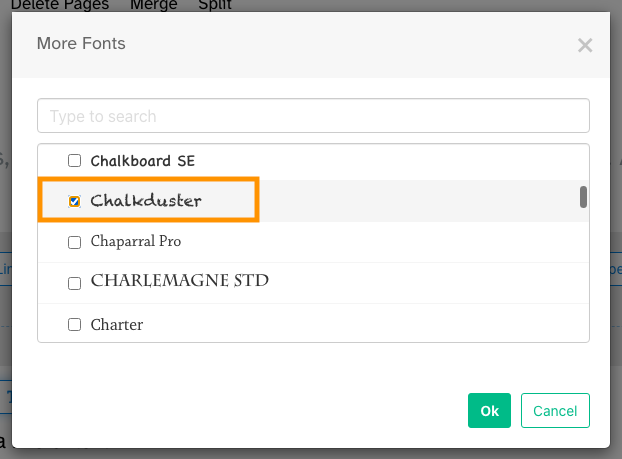
4) Select the font you would like to use and click "OK".
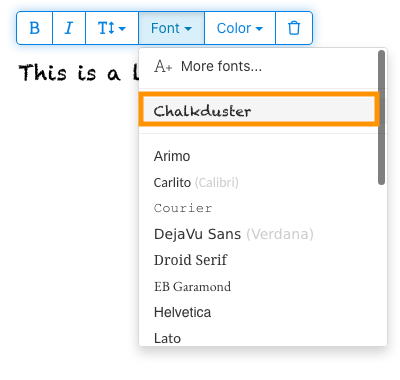
5) Click on the newly added font to use it for your text.
How long does it take for a refund to be processed?
It can take anywhere from 5-10 business days for a refund to show up on your bank account.
In some cases, the refund might be processed as a reversal, meaning the original payment will disappear from the account statement entirely and the balance will reflect as though the charge never occurred.
If you do not see the refund after 10 business days and you are still seeing the original charge on your bank statement, please reach out to support for more information.
How can you delete your FastSpring data?
If you've placed an order through FastSpring, our online authorized reseller & merchant of record, you can send your data erasure request to privacy@fastspring.com.
Malwarebytes interfering with Sejda Desktop?
Do you have Malwarebytes installed?
Please try temporarily turning Malwarebytes off and see if that solves the problem: Instructions here
You can report this problem with Malwarebytes: Report false positive
Could not convert: Page uses CAPTCHAs
The website you are trying to convert uses CAPTCHAs to block automated robots (such as our converter) from visiting their website.
There is no work around this.
See if the browser extension helps with your use-case:
HTML to PDF browser-extension
Install Linux OCR engine
Sejda Desktop does not ship with an embedded OCR engine on Linux, it uses the one available on the system.
To install an OCR engine, please run the following command:
sudo apt-get install -y tesseract-ocr tesseract-ocr-all
Once the command completes, return to Sejda Desktop and run your OCR task again.
Install Linux OCR language data
The OCR engine is installed successfully, but it is missing language data.
To install language data, please run the following command:
sudo apt-get install -y tesseract-ocr-all
About 667M of data will be downloaded and installed.
Once the command completes, return to Sejda Desktop and run your OCR task again.
يطلب مني أدخل كلمة سر المالك
ليش يطلب مني كلمة سر؟
بعض ملفات PDF تجي بإعدادات حماية تمنع عمليات معينة، مثل الطباعة، نسخ النص، التعديل، أو إضافة ملاحظات. هالقيود يحطها صاحب الملف عشان يتحكم بكيفية استخدامه ومشاركته.
لما نكتشف إن الـ PDF فيه هالقيود، بنطلب منك كلمة سر المالك. إدخال كلمة السر يفتح الملف ويعطيك صلاحية كاملة لكل الميزات والصلاحيات. هالخطوة تضمن إن الأشخاص المصرح لهم بس هم اللي يقدرون يغيرون أو يشيلون القيود اللي حطها الكاتب الأصلي.
وش هي كلمة سر المالك؟
كلمة سر المالك يحطها منشئ الـ PDF عشان يمنع التغييرات غير المصرح بها على الملف. تختلف عن كلمة سر المستخدم، اللي تمنع فتح الملف بالكامل. إذا معك كلمة سر المالك، يعني عندك صلاحية كاملة للملف.
وش يصير لو ما عندي كلمة سر المالك؟
لو ما عندك كلمة السر، بيستمر وصولك محدود بناءً على القيود الموجودة في الـ PDF.
عشان تحصل على صلاحية كاملة، لازم تجيب نسخة مفتوحة من الملف.
كيف أتجنب كتابة كلمة سر المالك كل مرة؟
تقدر تستخدم أداة PDF unlocker عشان تشيل قيود الصلاحيات من ملفك. تسويها مرة وحدة بس. وبعدها ما راح يطلب منك كلمة سر المالك لهالوثيقة مرة ثانية.
افتح ملف PDF في Google Chrome، اضغط Ctrl+P للطباعة، اختار الـ "Destination" تكون "Save as PDF" فوق على اليمين، وبعدها اضغط "Save".
هل الاشتراك المدفوع بيحل المشكلة؟
لا، بيظل يطلب منك كلمة سر المالك حتى لو كان عندك اشتراك مدفوع معنا.
تقدرون تعطوني كلمة سر المالك؟
لا، ما نعرف كلمة سر المالك لملفاتك. كلمة سر المالك اختارها الشخص اللي سوا الملف، وهي تختلف عن كلمة سر دخولك.
ما أقدر أعدل أو أحول ملف ممسوح ضوئياً
ليش الملفات الممسوحة ضوئياً ما تتعدل ولا تتحول؟
لما تسوي سكان لورقة عشان تطلع PDF، الماسح يصور كل صفحة كصورة. هالعملية تحول النص والرسومات والتنسيق لملف صورة وحدة داخل الـ PDF. عكس ملفات الـ PDF العادية، اللي فيها النص محفوظ كحروف وسطور تقدر تختارها وتنسخها وتعدلها، الـ PDF الممسوح ضوئياً يعامل كل صفحة كأنها صورة وحدة كبيرة.
لأن النص في الـ PDF الممسوح ضوئياً جزء من صورة، برامج التعديل ما تقدر تتعرف عليه أو تعدله مباشرة. البرنامج يشوف بس مجموعة بكسلات، مو حروف أو كلمات واضحة. هالشي يخلي تعديل الفقرات أو تغيير النص مستحيل زي ما تسوي في ملف PDF العادي المعتمد على النصوص.
كيف أعرف إذا الملف ممسوح ضوئياً؟
وحدة من الطرق عشان تعرف هي إنك تفتح الملف وتجرب تختار النص بالماوس. في الـ PDF القابل للتعديل، تقدر تظلل النص بالضغط والسحب فوقه. إذا كنت غير قادر على تحديد أي نص والصفحة بأكملها تظهر كصورة واحدة، فمن المرجح أن المستند ممسوح ضوئياً.
ملاحظة: تتم معالجة بعض المستندات الممسوحة ضوئياً باستخدام (OCR) لتصبح ملفات "قابلة للبحث"، بحيث يمكن تحديد النص والبحث فيه. ومع ذلك، تظل هذه المستندات ممسوحة ضوئياً ولا يمكن تعديلها أو تحويلها مثل ملفات الـ PDF العادية.
أنا متأكد أن مستندي ليس ممسوحاً ضوئياً
تشبه بعض المستندات المسوحات الضوئية لأن محتواها مدرج كصور في كل صفحة. يمكن أن يحدث هذا مع المستندات المنشأة من لقطات الشاشة أو عند تحويل النص إلى خطوط خارجية بدلاً من إدراجه كنص قابل للتعديل.
رغم أن هذه ليست مسوحات ضوئية تقنياً، إلا أنها تعمل بشكل مشابه. للأسف، نحن أيضاً لا ندعم تعديل أو تحويل هذه الأنواع من المستندات.
هل الاشتراك المدفوع بيحل المشكلة؟
لا، الترقية إلى باقة مدفوعة لن تمكنك من تعديل أو تحويل المستندات الممسوحة ضوئياً. تعديل أو تحويل المسوحات الضوئية غير مدعوم، بغض النظر عن مستوى اشتراكك.
أنا متأكد أنني كنت قادراً على تعديل هذا المستند سابقاً
لم يسبق لنا دعم تعديل أو تحويل المستندات الممسوحة ضوئياً. إذا كنت قادراً على تعديل المستند سابقاً، فمن المحتمل أنه تم تصديره إلى PDF بشكل مختلف عن المستند الحالي.
فشل Sejda Desktop بسبب الصلاحيات
هناك سببان شائعان لهذا الخطأ: نقص الصلاحيات أو تداخل برنامج مكافحة الفيروسات.
صلاحيات غير كافية: قد تحتاج إلى تشغيل Sejda Desktop بصلاحيات Administrator. انقر بيمين الماوس على التطبيق، ثم اختر "More" > "Run as administrator".
برنامج مكافحة الفيروسات أو الحماية: جرب تعطيل برنامج مكافحة الفيروسات مؤقتاً للتأكد ما إذا كان ذلك يساعد في حل المشكلة.
تثبيت Sejda Desktop على Chromebook
بتقدر تثبت Sejda Desktop على Chromebook باستخدام بيئة تطوير Linux (المعروفة بـ Crostini).
المتطلبات
لازم يكون الـ Linux development environment مفعّل على جهاز الـ Chromebook تبعك. لتفعيله، روح لـ Settings ← Advanced ← Developers ← Linux development environment واتبع خطوات الإعداد.
مو كل أجهزة Chromebook بتدعم Linux. الموديلات القديمة أو الضعيفة ممكن ما يتوفر فيها هاد الخيار.
1. تنزيل نسخة Linux (.deb)
2. ثبته في الـ Terminal
افتح تطبيق Linux Terminal وشغّل:
cd ~/Downloads
sudo dpkg -i sejda-desktop_*.deb
sudo apt -f install
3. شغّله
sejda-desktop
أو ابدأ تشغيله من مجلد تطبيقات Linux في الـ ChromeOS launcher.
حل المشكلات: التطبيق ما بيفتح
إذا ما ظهر Sejda Desktop أو فشل بفتح نافذة، ثبّت مكتبات الـ GUI الناقصة:
sudo apt install -y libgconf-2-4 libatk1.0-0 libatk-bridge2.0-0
ميزات OCR
Sejda Desktop على Linux بيستخدم محرك الـ OCR الخاص بالنظام.
شوف Install Linux OCR engine للتعليمات