 Google Drive
 OneDrive
למטה נראה איך מחלקים PDF למספר קבצים.
-
Upload את הקבצים שלך
הקבצים מועלים בבטחה (Upload) דרך חיבור מוצפן. הקבצים נשארים מאובטחים. לאחר העיבוד, הם נמחקים לצמיתות.
מעדיף לא לבצע Upload ולעבוד אופליין?
Try Sejda Desktop. אותן תכונות כמו בשירות האונליין, והקבצים לא עוזבים את המחשב שלך.לחץ על 'Upload' ובחר קבצים מהמחשב שלך.
אפשר גם לגרור ולהשליך קבצים לדף.
קבצי Dropbox או Google Drive
ניתן לבחור קבצי PDF גם מ-Dropbox או Google Drive.
פתח את תפריט ה-'Upload' ובחר את הקבצים שלך.
-
How to save multipage PDF into separate pages
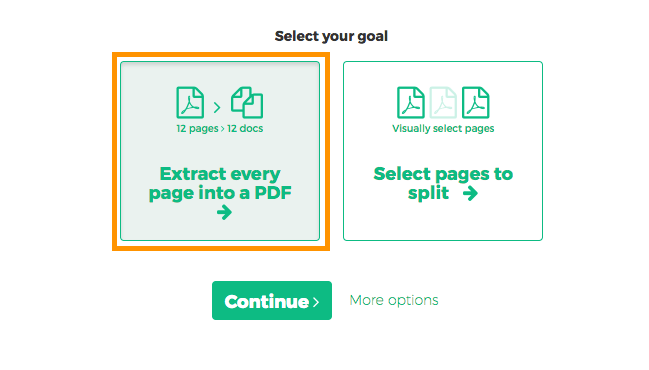
Want to split every PDF page to a separate document? Select 'Extract every page into a PDF'.
![]()
-
How to extract every 2 pages from PDF
Want to extract every two pages into a new PDF? An example would be an original 12 pages document being split into 6 smaller documents, having 2 pages each. First document has pages 1 and 2, next one has pages 3 and 4 and so on.
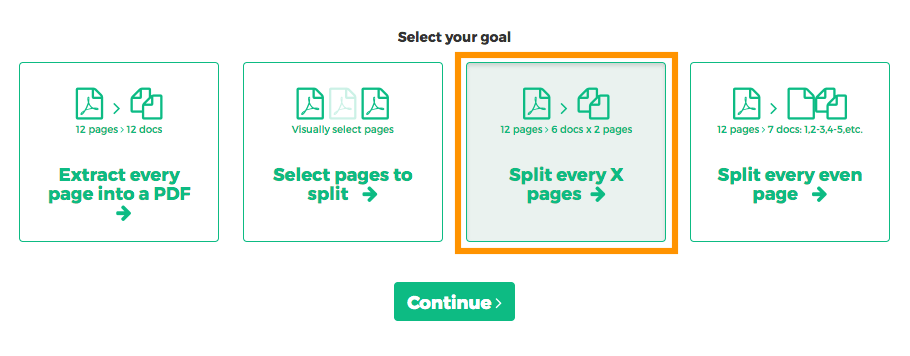
Click 'More options', then select 'Split every X pages'.
![]()
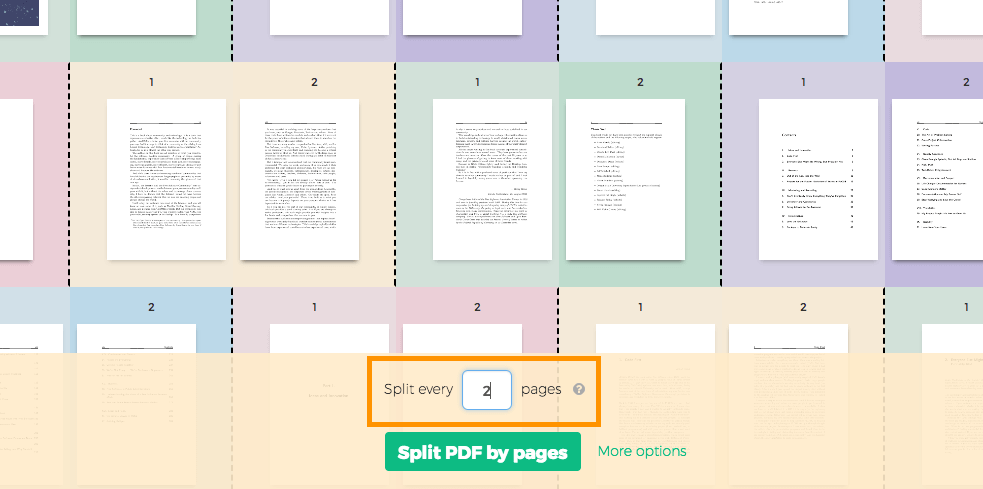
In the next screen, displaying all pages, type '2' into the number of pages field.
![]()
-
How to split PDF by every X page
Let's say you have a 12 pages document and you'd like to split it into 3 documents, each containing 4 pages from the original. Here's how to do it.
Click 'More options', then select 'Split every X pages'.
![]()
In the next screen you can set the number of pages the resulting documents should contain.
![]()
-
How to visually select PDF pages to split at
You want to split the document at certain pages. For example a 12 pages document needs to be split in two, first part should have first 3 pages and the second part the remaining 9 pages.
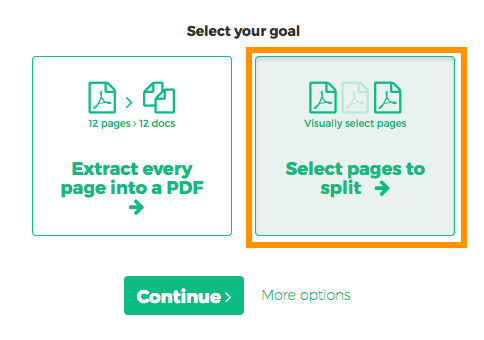
Choose 'Select pages to split'. The next screen should display all pages in the document.
![]()
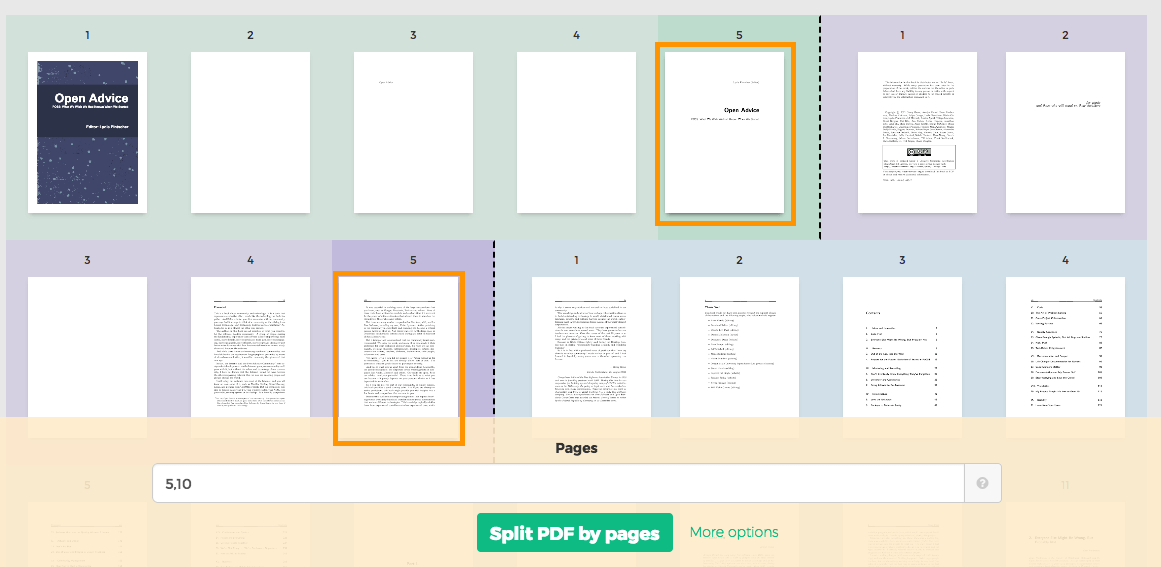
Click on pages. You should see a color coded visual preview of how the document will be divided.
Example: Click on page 4 and page 10 if you want to split the document in 3 parts: first containing pages 1-4, second containing pages 5-10 and last pages 11 to the end.
![]()
Wrong selection? Just click the same page again to undo. There's also a 'Reset selection' button in the top part of the page to start over.