 Google Drive
 OneDrive
PDF を複数のファイルに分ける方法を以下に示します.
-
ファイルをUpload
ファイルは暗号化接続で安全にUploadされます. ファイルは安全に保護されます. 処理後、ファイルは完全に削除されます.
ファイルをUploadせず、オフラインで作業したいですか?
Try Sejda Desktop. オンライン版と同じ機能で、ファイルがPCから出ることはありません.'Upload'をクリックしてPCからファイルを選択.
ファイルをページにドラッグ&ドロップしてもOKです.
Dropbox または Google Drive のファイル
Dropbox や Google Drive からも PDF を選択できます.
'Upload'のドロップダウンを開いてファイルを選択してください.
-
How to save multipage PDF into separate pages
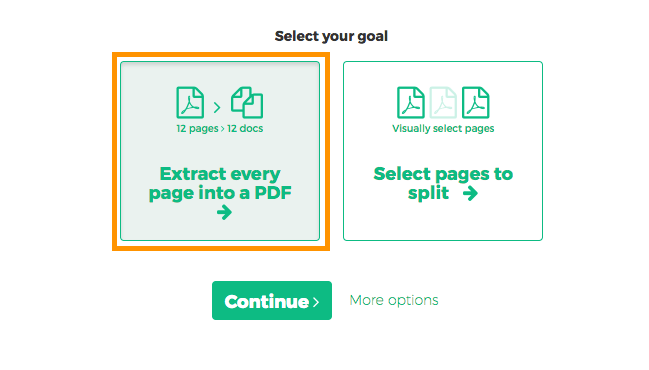
Want to split every PDF page to a separate document? Select 'Extract every page into a PDF'.
![]()
-
How to extract every 2 pages from PDF
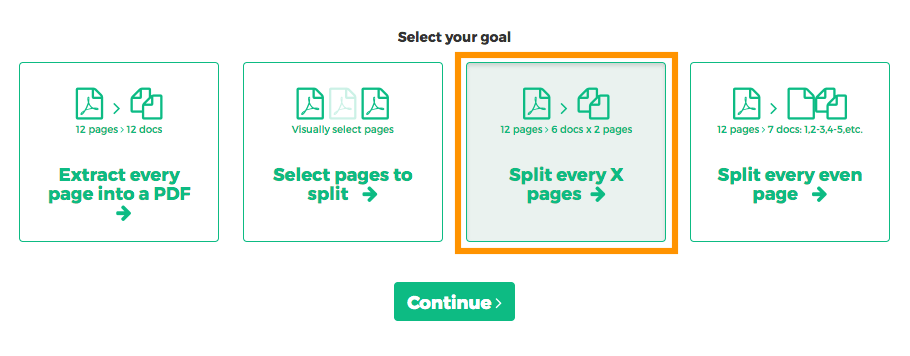
Want to extract every two pages into a new PDF? An example would be an original 12 pages document being split into 6 smaller documents, having 2 pages each. First document has pages 1 and 2, next one has pages 3 and 4 and so on.
Click 'More options', then select 'Split every X pages'.
![]()
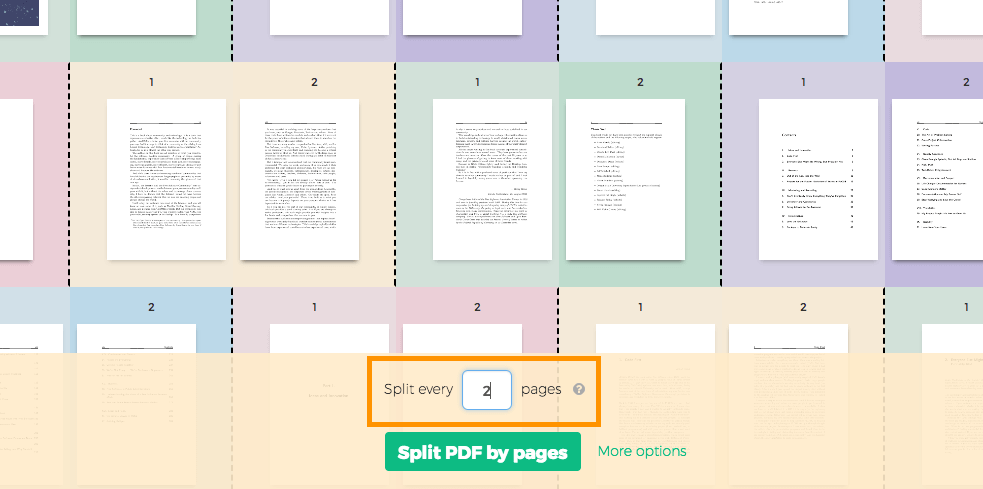
In the next screen, displaying all pages, type '2' into the number of pages field.
![]()
-
How to split PDF by every X page
Let's say you have a 12 pages document and you'd like to split it into 3 documents, each containing 4 pages from the original. Here's how to do it.
Click 'More options', then select 'Split every X pages'.
![]()
In the next screen you can set the number of pages the resulting documents should contain.
![]()
-
How to visually select PDF pages to split at
You want to split the document at certain pages. For example a 12 pages document needs to be split in two, first part should have first 3 pages and the second part the remaining 9 pages.
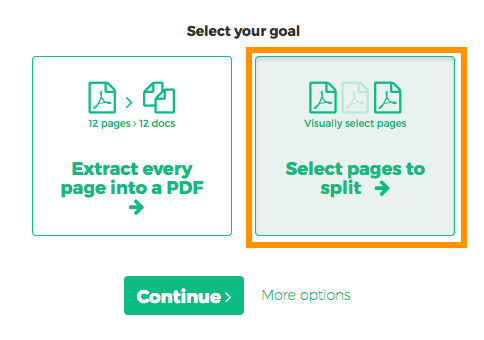
Choose 'Select pages to split'. The next screen should display all pages in the document.
![]()
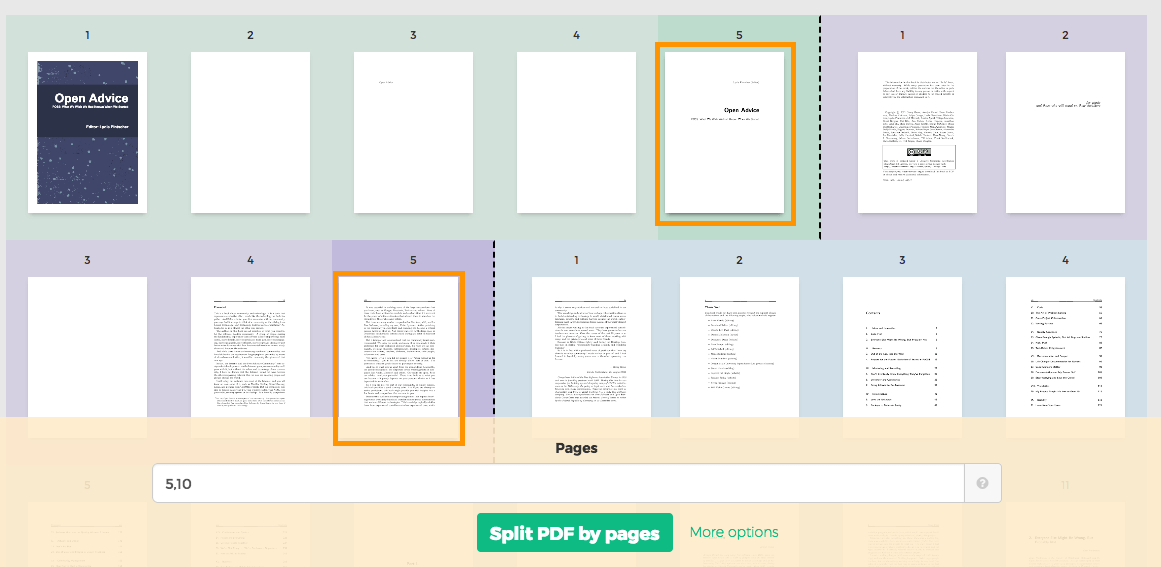
Click on pages. You should see a color coded visual preview of how the document will be divided.
Example: Click on page 4 and page 10 if you want to split the document in 3 parts: first containing pages 1-4, second containing pages 5-10 and last pages 11 to the end.
![]()
Wrong selection? Just click the same page again to undo. There's also a 'Reset selection' button in the top part of the page to start over.