Sejda PDF Desktop
Productive PDF software that you'll love to use
Sejda PDF Desktop は1日の制限内なら無料で使えるよ.
PRO機能と無制限利用のためにアップグレードしてね.
| Free | Pro |
| 3 tasks per day | Unlimited |
| Docs up to 50MB and 200 pages | Unlimited |
| Compress files up to 100MB | Unlimited |
| OCR files up to 10 pages | Unlimited |
| Images up to 5MB | Unlimited |
| Combine up to 30 files and 50 pages | Unlimited |
| Convert files one by one | Multiple files in one go |
PDF Task のお手伝いをするよ
ファイルを1つのPDFにMerge
ページを視覚的に結合・並べ替え、複数のPDFをMerge. 別々のファイルの奇数・偶数ページを交互にミックス.

PDFファイルをSplit
ドキュメントをページごとにSplit. 個別のドキュメントを抽出. サイズ、ブックマーク、テキストでSplit. 見開きスキャンを分割
PDFをOfficeや画像形式に変換
PDFをWord、Excel、画像に変換. 画像をPDFに変換
PDFを圧縮
PDFのサイズを縮小. 画像やリソースを最適化

PDFファイルを編集
PDF内のテキストを追加・編集・移動. フォントの種類、サイズ、スタイルを変更. ページの挿入、並べ替え、移動、削除.
署名、ハイライト、図形を追加
PDFにパスワードと制限を適用
PDFにコピー・編集保護を追加. 不正アクセスから保護するパスワードを設定
Watermark PDF
画像やテキストの透かしをPDFに追加
Grayscale PDF
PDFのテキストと画像をグレースケールにする
作物PDF
余白のトリミング、表示領域の調整、ページサイズの変更
Easy to adopt and deploy in the enterprise
- Pre-activated deployments with a volume license key
- Citrix™ and Terminal Services™ compatible
- Save costs — volume discounts start from 2 licenses (up to 60% off)
あなたにぴったりのプランを見つけよう
ビジネスに最適なプランを見つけよう
Sejda PDF Desktop は1日の制限内なら無料で使えるよ. PRO機能と無制限利用のためにアップグレードしてね.
for 10 users
- Latest features
- 7 days access to Sejda Desktop
- 7 days access to Sejda Web
for 10 users
- Latest features
- A year access to Sejda Desktop
- A year access to Sejda Web

Common questions
How can I cancel my subscription?
To cancel a recurring subscription just click 'Stop auto-renewal' from your account page. You can also email hi@sejda.com.
The Week Pass plan is a one-time charge, not a recurring subscription. It does not automatically renew and downgrades to free after 7 days.
Will my subscription be automatically renewed?
The Week Pass plan is a one-time charge, not a recurring subscription. It does not automatically renew and downgrades to free after 7 days.
Desktop Annual is a recurring subscription and will continue until you cancel.
Subscriptions auto-renew at the end of each term and you will be charged for the subsequent term.
What is the difference between Sejda Desktop and Sejda Web?
Sejda Web is the online, browser-based service, where files are uploaded and processed on our servers.
Sejda Desktop is an application that you can install on your computer and files are processed locally, on your computer.
Does Sejda Desktop process files locally?
Yes, with Sejda Desktop files are processed on your computer, not uploaded to our servers.
Can I use Sejda Desktop on both my laptop and my desktop?
Yes, you can use one license of Sejda Desktop on both your laptop and your desktop, given you are the only one using Sejda Desktop on these computers.
Do you offer a perpetual license?
No, we don't offer perpetual licenses anymore.
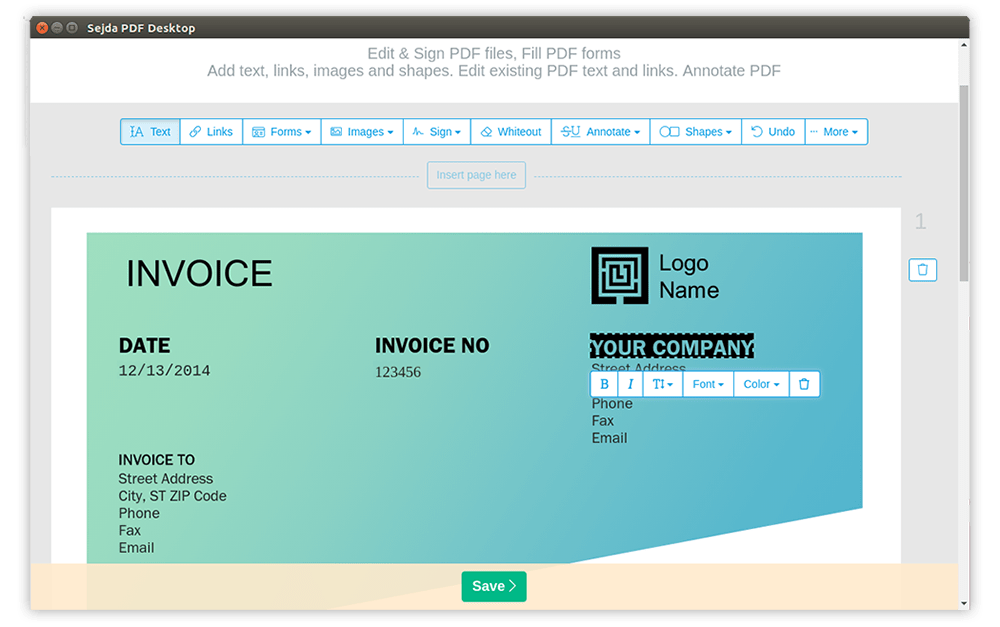
Ubuntu Linux Chromebook PDF Editor
Ubuntu LinuxまたはChromebookでPDFを編集する方法
-
ファイルを開く: Linux 版 Sejda Desktop or use the オンラインPDFファイルエディタ
-
上部メニューの Text ツールをクリックします
-
既存のテキストをクリックして編集を開始し、テキストを変更します. PDF ページにテキストを追加します.
-
ページに画像を追加します. ドラッグして画像の移動、サイズ変更、回転を行います
-
PDF フォームへの入力と署名の追加を行います. 署名を、描く、入力する、または画像を Upload します
-
PDF ページへの注釈追加、テキストのハイライト、取り消し線による変更のマークを行います
-
Web URL やドキュメント内のページへのリンクを追加します. PDF 内の既存のハイパーリンクを簡単に編集します
-
PDF 内の特定の単語をすべて検索して置換します. ページの一部をホワイトアウトします.図形を追加します
-
Apply changes をクリックして、編集したドキュメントを保存します