 Google Drive
 OneDrive
Нижче ми покажемо, як розділити PDF на кілька файлів.
-
Upload твої файли
Файли безпечно проходять Upload через зашифроване з'єднання. Файли залишаються в безпеці. Після обробки вони видаляються назавжди.
Не хочеш робити Upload файлів і бажаєш працювати офлайн?
Try Sejda Desktop. Ті самі функції, що й в онлайн-сервісі, а файли ніколи не залишають твій комп'ютер.Натисни 'Upload' і вибери файли зі свого комп'ютера.
Перетягування файлів на сторінку також працює.
Файли Dropbox або Google Drive
Ти також можеш вибрати PDF-файли з Dropbox або Google Drive.
Розгорни список 'Upload' і вибери свої файли.
-
How to save multipage PDF into separate pages
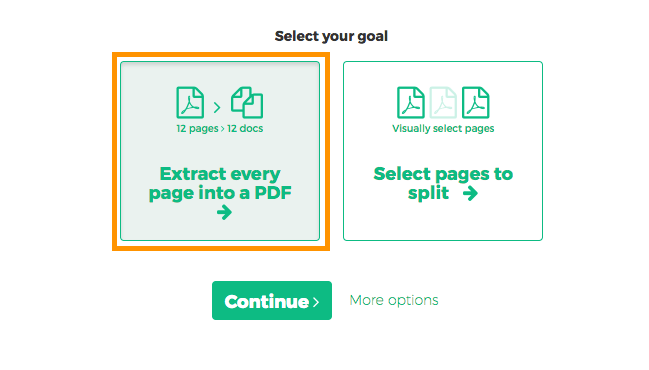
Want to split every PDF page to a separate document? Select 'Extract every page into a PDF'.
![]()
-
How to extract every 2 pages from PDF
Want to extract every two pages into a new PDF? An example would be an original 12 pages document being split into 6 smaller documents, having 2 pages each. First document has pages 1 and 2, next one has pages 3 and 4 and so on.
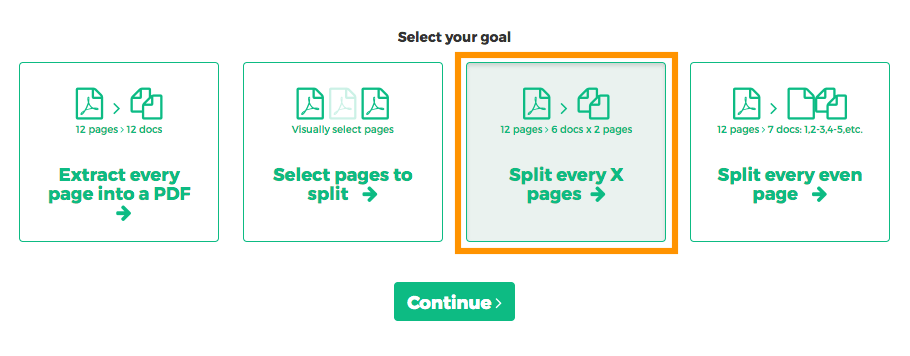
Click 'More options', then select 'Split every X pages'.
![]()
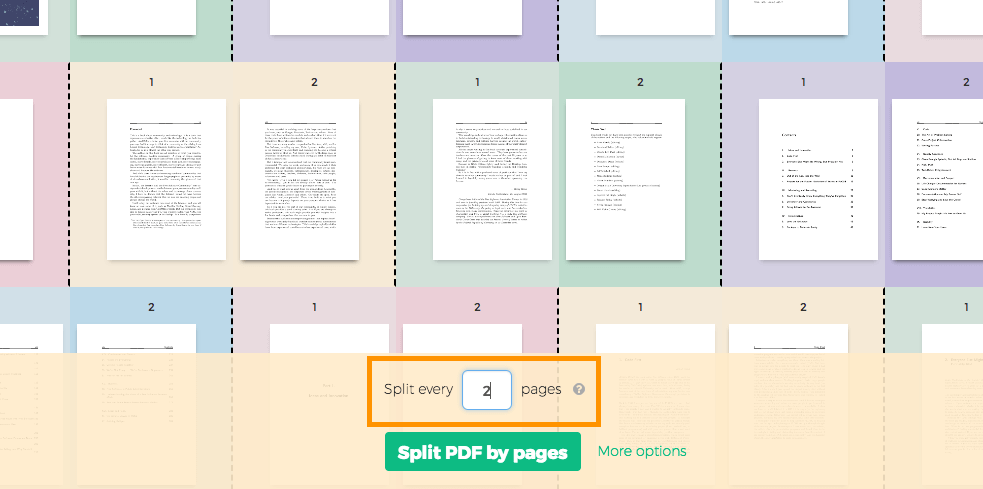
In the next screen, displaying all pages, type '2' into the number of pages field.
![]()
-
How to split PDF by every X page
Let's say you have a 12 pages document and you'd like to split it into 3 documents, each containing 4 pages from the original. Here's how to do it.
Click 'More options', then select 'Split every X pages'.
![]()
In the next screen you can set the number of pages the resulting documents should contain.
![]()
-
How to visually select PDF pages to split at
You want to split the document at certain pages. For example a 12 pages document needs to be split in two, first part should have first 3 pages and the second part the remaining 9 pages.
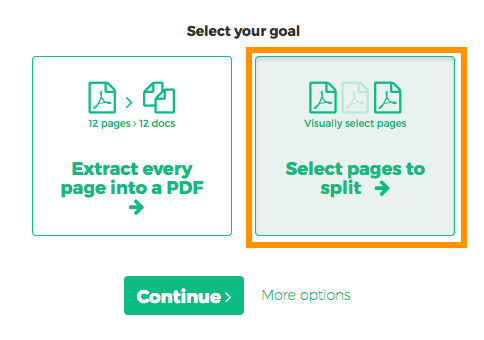
Choose 'Select pages to split'. The next screen should display all pages in the document.
![]()
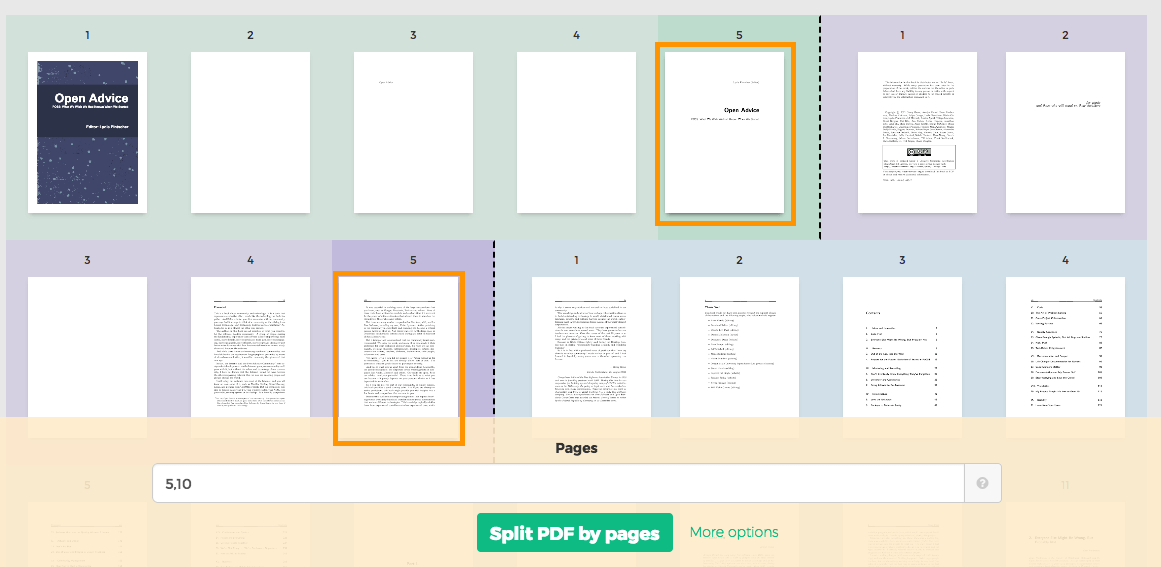
Click on pages. You should see a color coded visual preview of how the document will be divided.
Example: Click on page 4 and page 10 if you want to split the document in 3 parts: first containing pages 1-4, second containing pages 5-10 and last pages 11 to the end.
![]()
Wrong selection? Just click the same page again to undo. There's also a 'Reset selection' button in the top part of the page to start over.