 Google Drive
 OneDrive
Below we show how to convert images to PDF.
JPG is the most popular image format out there, but we also support all the other image formats: png, gif, tiff or bmp.
Upload твої файли
Файли безпечно проходять Upload через зашифроване з'єднання. Файли залишаються в безпеці. Після обробки вони видаляються назавжди.
Не хочеш робити Upload файлів і бажаєш працювати офлайн?
Try Sejda Desktop. Ті самі функції, що й в онлайн-сервісі, а файли ніколи не залишають твій комп'ютер.
Натисни 'Upload' і вибери файли зі свого комп'ютера.
Перетягування файлів на сторінку також працює.
Файли Dropbox або Google Drive
Ти також можеш вибрати PDF-файли з Dropbox або Google Drive.
Розгорни список 'Upload' і вибери свої файли.
Step 2: Choose options
Page size
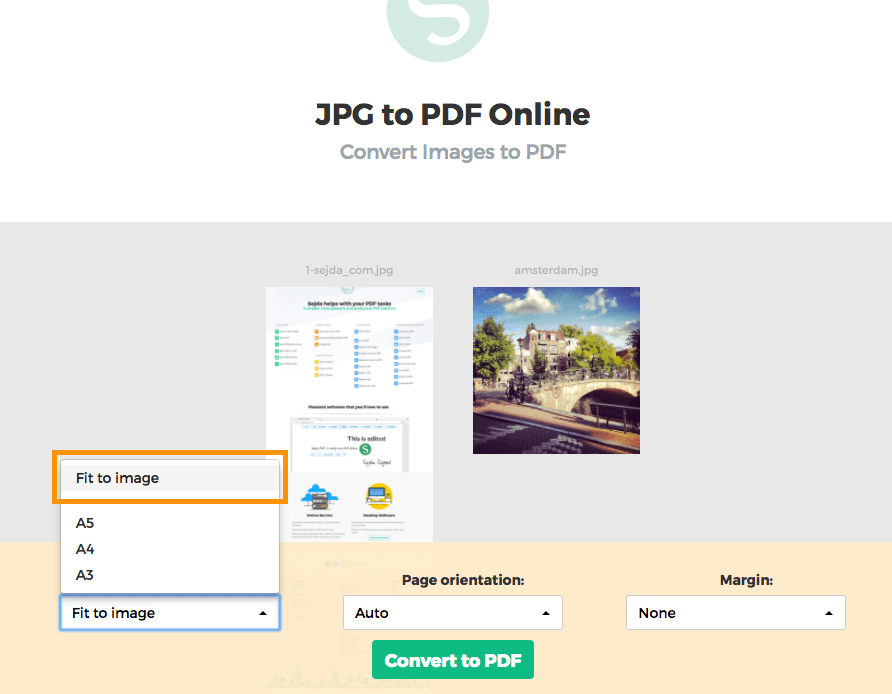
By default images are placed in a A4 sized PDF page. You can choose different page sizes, including the option to have it fit the image size.
Click the Page size dropdown and make a selection.
Page orientation
For most users the default auto detected page size will work best. Based on the image dimensions either portrait or landscape is selected. If the image width is larger than its height, then a landscape page orientation is a better fit than portrait.
A specific page orientation can be selected from the dropdown, in case you need to override the default.
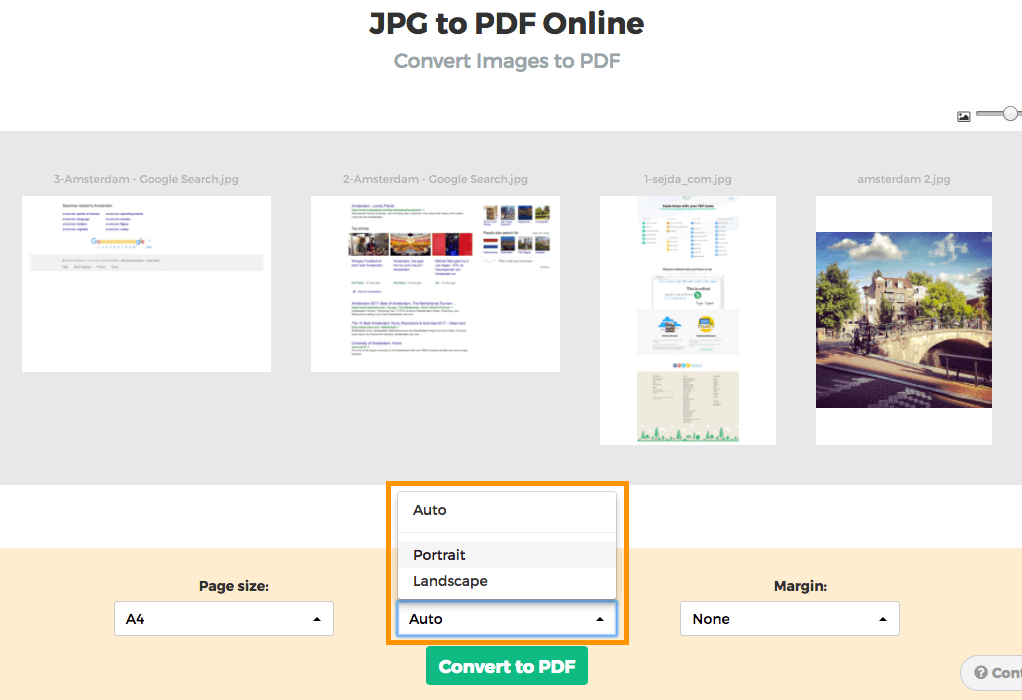
Image margins
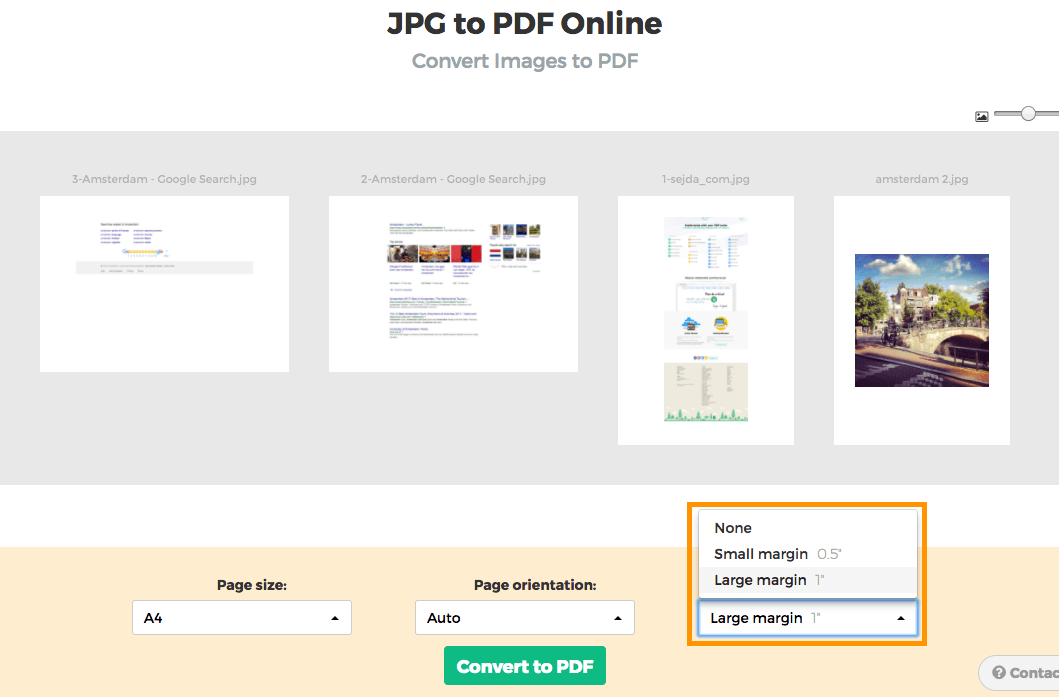
By default the image will fill the whole available space on the page, no image margins being added.
Want to add a whitespace border around the image? This can be configured either as a small margin (0.5 inch) or a larger margin (1 inch).
Reorder images
Reorder pages by dragging the thumbnails with your mouse to the correct location.
Add more images or pages by dragging files from your computer onto the web page.