 Google Drive
 OneDrive
Below we show how to convert images to PDF.
JPG is the most popular image format out there, but we also support all the other image formats: png, gif, tiff or bmp.
上傳您的文件
文件通過加密連接安全上傳. 文件保持安全. 處理後,它們將被永久刪除.
不想上傳您的文件並離線處理它們?
Try Sejda Desktop. 與在線服務功能相同,且文件永遠不會離開您的計算機.
點擊“上傳”並從您的本地計算機選擇文件.
將文件拖放到頁面上也有效.
Dropbox 或 Google Drive 文件
您也可以從 Dropbox 或 Google Drive 中選取 PDF 文件.
展開“上傳”下拉菜單並選擇您的文件.
Step 2: Choose options
Page size
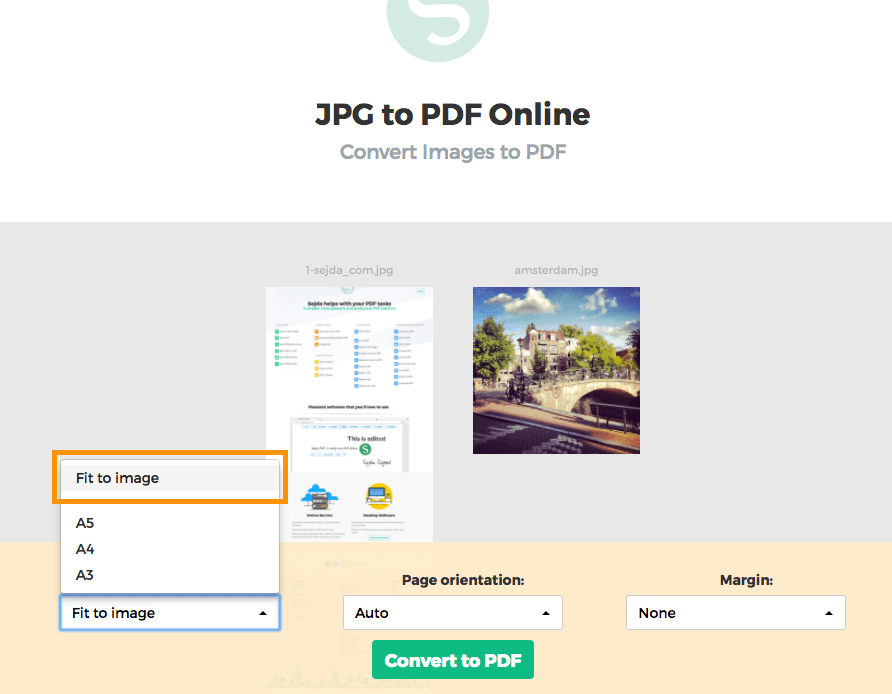
By default images are placed in a A4 sized PDF page. You can choose different page sizes, including the option to have it fit the image size.
Click the Page size dropdown and make a selection.
Page orientation
For most users the default auto detected page size will work best. Based on the image dimensions either portrait or landscape is selected. If the image width is larger than its height, then a landscape page orientation is a better fit than portrait.
A specific page orientation can be selected from the dropdown, in case you need to override the default.
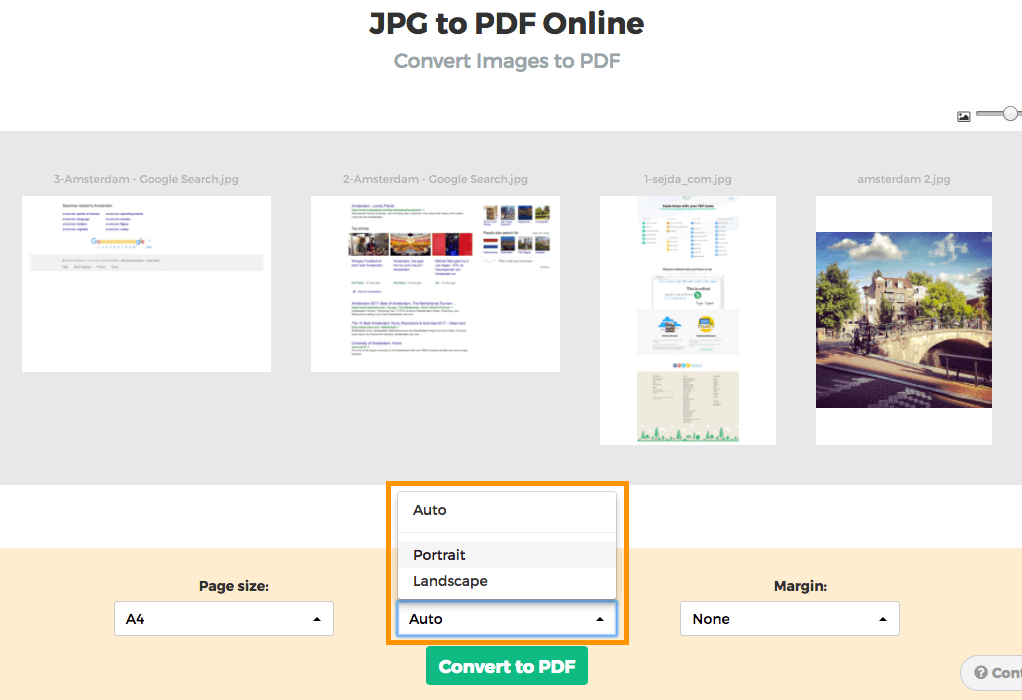
Image margins
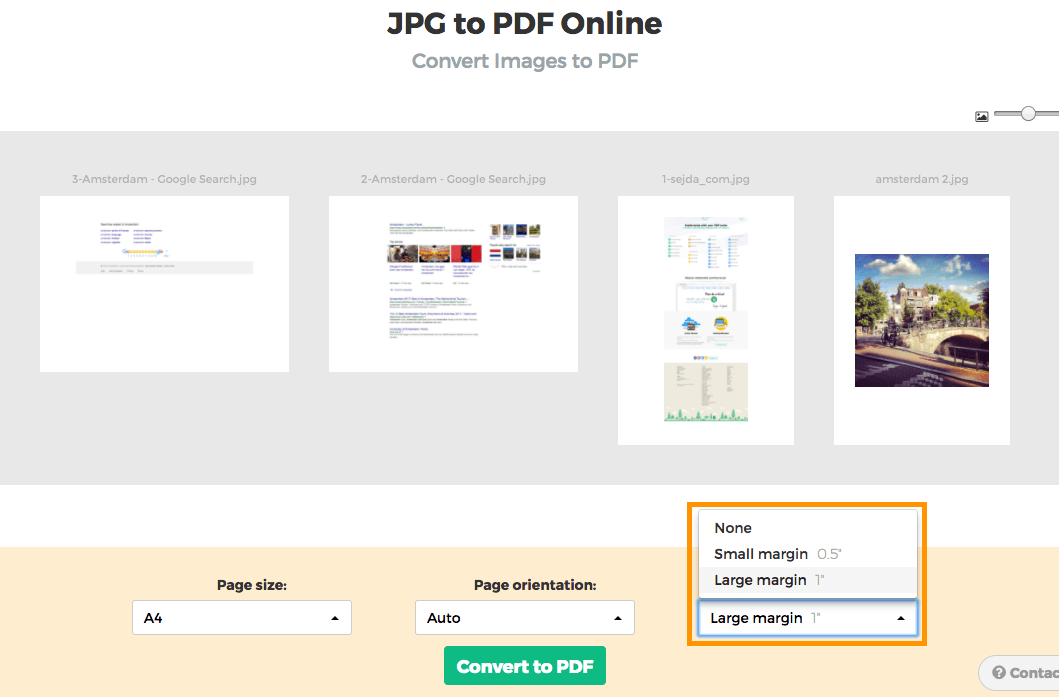
By default the image will fill the whole available space on the page, no image margins being added.
Want to add a whitespace border around the image? This can be configured either as a small margin (0.5 inch) or a larger margin (1 inch).
Reorder images
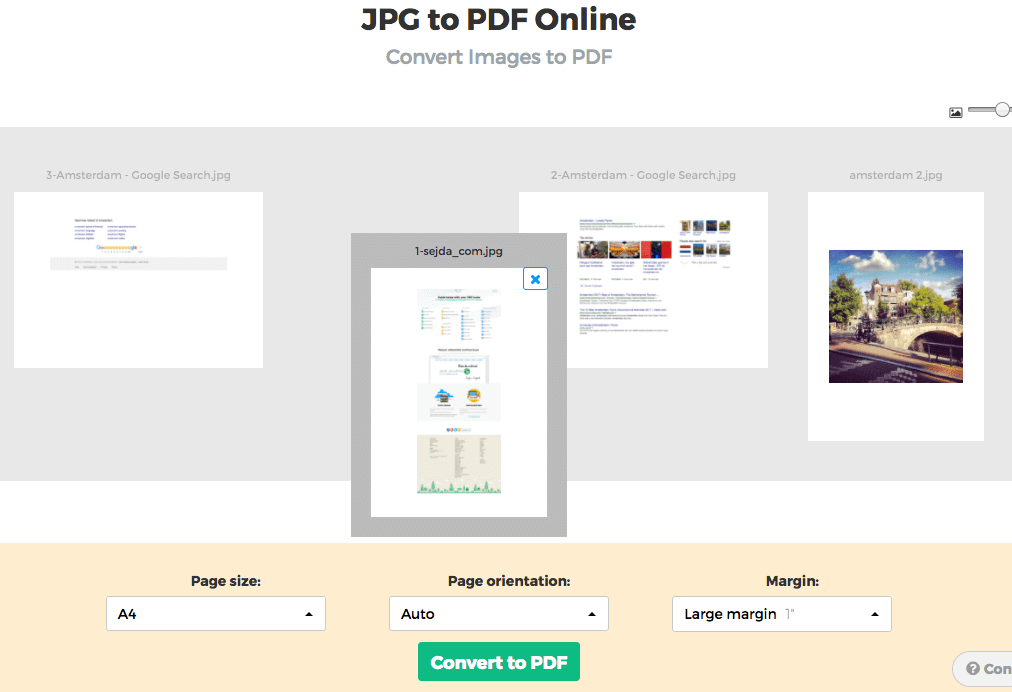
Reorder pages by dragging the thumbnails with your mouse to the correct location.
Add more images or pages by dragging files from your computer onto the web page.