 Google Drive
 OneDrive
Below we show how to convert images to PDF.
JPG is the most popular image format out there, but we also support all the other image formats: png, gif, tiff or bmp.
Upload dine filer
Filer uploades sikkert via en krypteret forbindelse. Filerne forbliver sikre. Efter behandling slettes de permanent.
Vil du hellere lade være med at uploade og arbejde offline?
Try Sejda Desktop. Samme funktioner som online-tjenesten, og filerne forlader aldrig din computer.
Klik på 'Upload' og vælg filer fra din computer.
Du kan også trække og slippe filer på siden.
Dropbox- eller Google Drive-filer
Du kan også vælge PDF-filer fra Dropbox eller Google Drive.
Udvid 'Upload'-menuen og vælg dine filer.
Step 2: Choose options
Page size
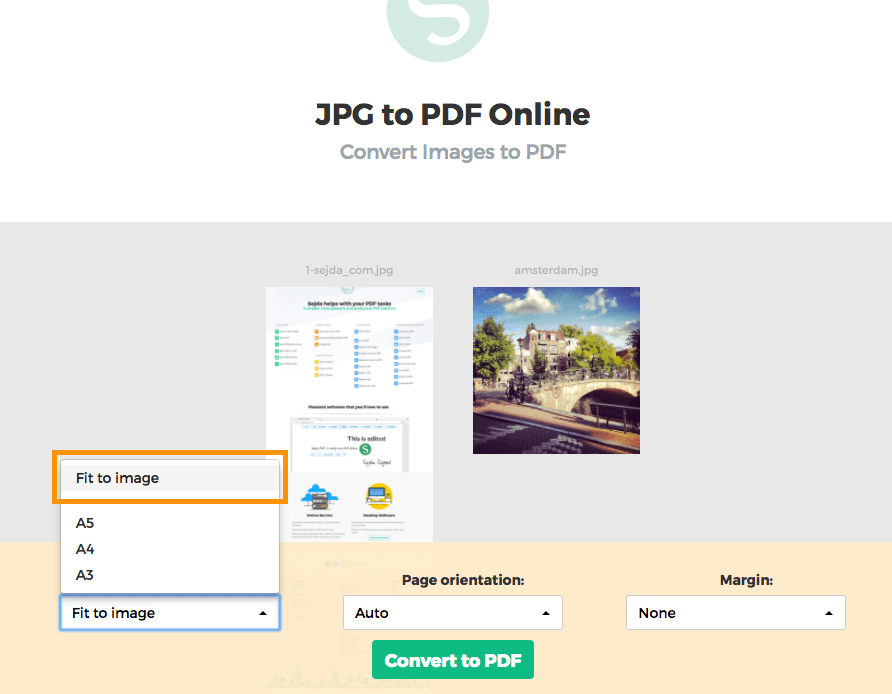
By default images are placed in a A4 sized PDF page. You can choose different page sizes, including the option to have it fit the image size.
Click the Page size dropdown and make a selection.
Page orientation
For most users the default auto detected page size will work best. Based on the image dimensions either portrait or landscape is selected. If the image width is larger than its height, then a landscape page orientation is a better fit than portrait.
A specific page orientation can be selected from the dropdown, in case you need to override the default.
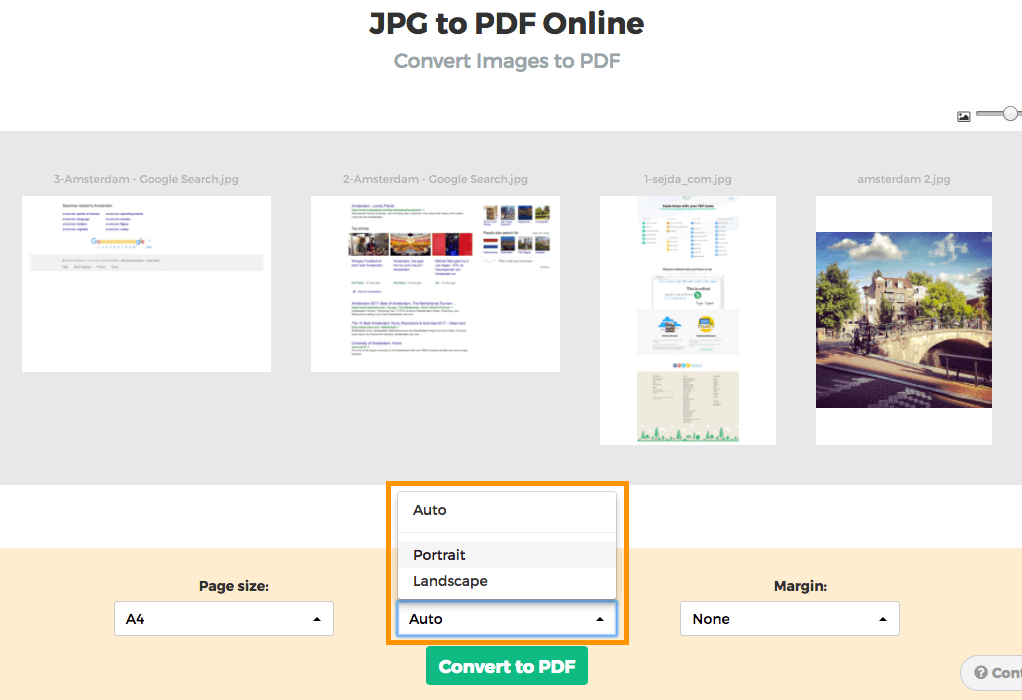
Image margins
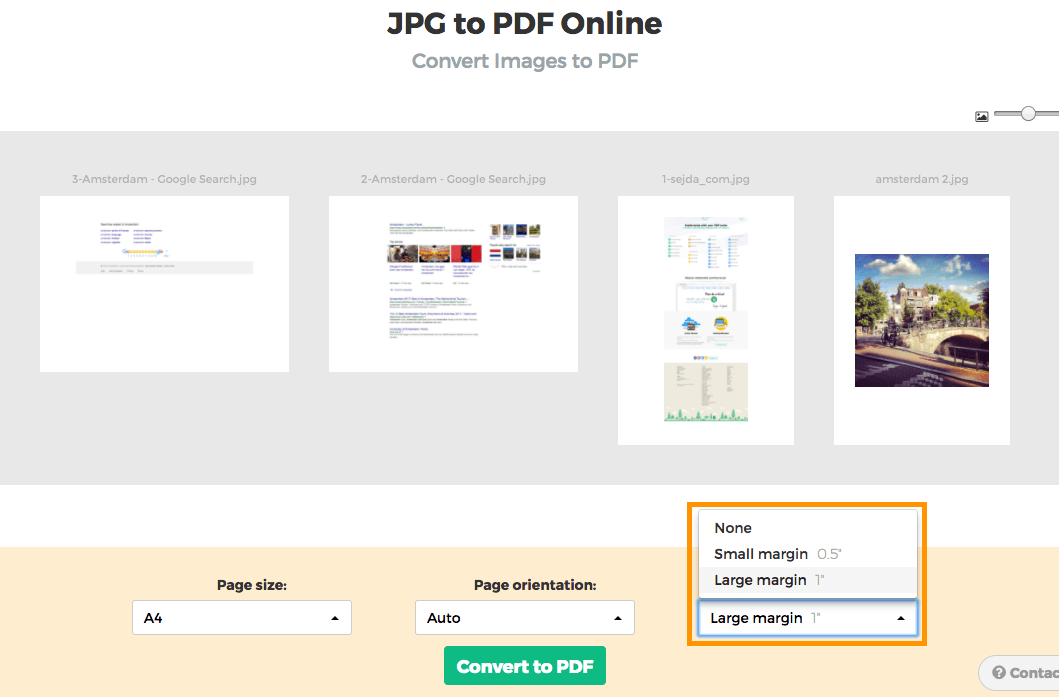
By default the image will fill the whole available space on the page, no image margins being added.
Want to add a whitespace border around the image? This can be configured either as a small margin (0.5 inch) or a larger margin (1 inch).
Reorder images
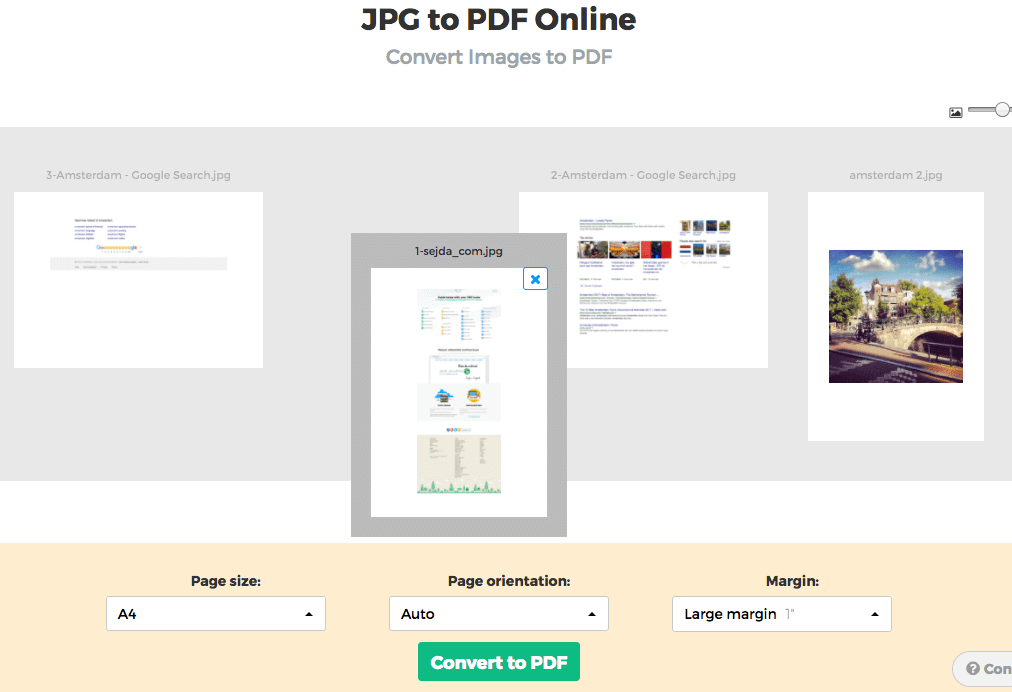
Reorder pages by dragging the thumbnails with your mouse to the correct location.
Add more images or pages by dragging files from your computer onto the web page.