
 Google Drive
 OneDrive
Below we show how to convert PDF files to black and white.
In case you’re not sure what grayscale means, it’s something that used to be in full colours and is now represented by a range of grey shades from white to black, as used in a monochrome display.
Few reasons to convert your colour PDF to grayscale are:
Save on coloured printer ink. If you're printing a grayscale PDF only black ink will be used.Compress the PDF to a smaller size. Works best when the PDF contains images. Grayscale images are smaller in size than coloured ones.

Upload dine filer
Filer uploades sikkert via en krypteret forbindelse. Filerne forbliver sikre. Efter behandling slettes de permanent.
Vil du hellere lade være med at uploade og arbejde offline?
Try Sejda Desktop. Samme funktioner som online-tjenesten, og filerne forlader aldrig din computer.
Klik på 'Upload' og vælg filer fra din computer.
Du kan også trække og slippe filer på siden.
Dropbox- eller Google Drive-filer
Du kan også vælge PDF-filer fra Dropbox eller Google Drive.
Udvid 'Upload'-menuen og vælg dine filer.
Step 2: Choose options
Use no colour ink when printing
A common reason for converting a PDF document to grayscale is to consume no coloured ink when printing it. If your PDF is grayscale, only black ink is used when you print it.
Offset printing
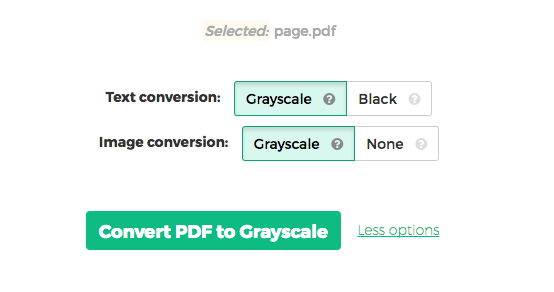
One of the tool features is that it can convert text to grayscale or simply black. This is handy when preparing a PDF document for offset printing.
Another feature allows skipping images altogether, leaving them in full colour, while converting to grayscale (or black) the text contents.