
 Google Drive
 OneDrive
Below we show how to split PDF pages with double page layout in two, down the middle. Splitting one A3 into two A4 pages is a great example.
Upload dine filer
Filer uploades sikkert via en krypteret forbindelse. Filerne forbliver sikre. Efter behandling slettes de permanent.
Vil du hellere lade være med at uploade og arbejde offline?
Try Sejda Desktop. Samme funktioner som online-tjenesten, og filerne forlader aldrig din computer.
Klik på 'Upload' og vælg filer fra din computer.
Du kan også trække og slippe filer på siden.
Dropbox- eller Google Drive-filer
Du kan også vælge PDF-filer fra Dropbox eller Google Drive.
Udvid 'Upload'-menuen og vælg dine filer.
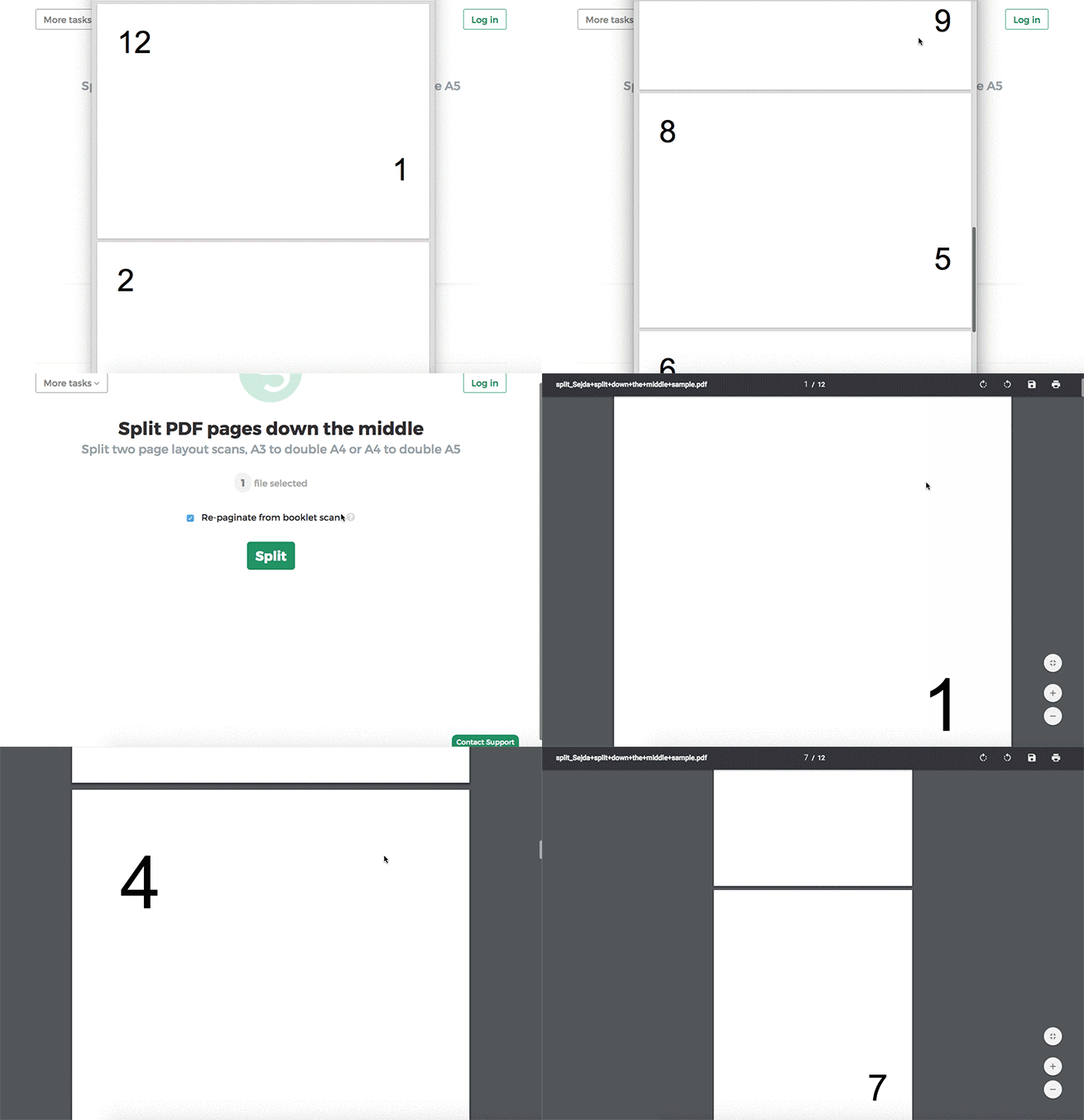
Step 2: Split double page layout scans
Whether it's A4 to double A5s or A3 into two A4s, whether it's landscape or portrait oriented, you don't have to configure anything. The program will auto-configure itself and detect the best way to split.
Just click the Split button to get your result PDF.
Example: You scanned a book by flipping each page and laying it face down on the scanner.
Tip: Reordering pages when document was scanned as a booklet
Sometimes it's easier to scan a document as a booklet, removing the middle ligature and feeding all pages into a scanner at once.
The page ordering in the scanned PDF is not the natural one. To split the document and then reorder the page back to their natural order there's a handy option you can select: Repaginate from booklet scan
Example: You scanned a book by taking out the middle ligature clips and feeding the double pages into a scanner.
In the scanned PDF, the pages are in the following order:12, 1, 2, 11, 10, 3, 4, 9 and so forth, for a 12 pages document.
Different ordering from your scanner? Contact us with details and we'll try to add support for it.
