
 Google Drive
 OneDrive
Below we show how to convert PDF files to black and white.
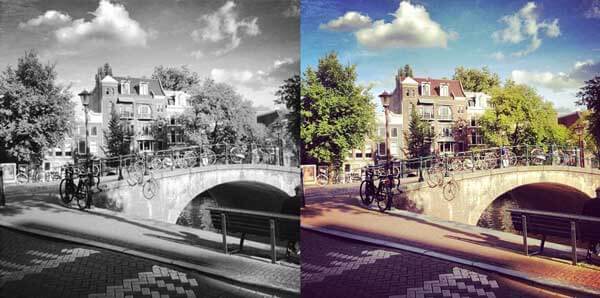
In case you’re not sure what grayscale means, it’s something that used to be in full colours and is now represented by a range of grey shades from white to black, as used in a monochrome display.
Few reasons to convert your colour PDF to grayscale are:
Save on coloured printer ink. If you're printing a grayscale PDF only black ink will be used.Compress the PDF to a smaller size. Works best when the PDF contains images. Grayscale images are smaller in size than coloured ones.
上傳您的文件
文件通過加密連接安全上傳. 文件保持安全. 處理後,它們將被永久刪除.
不想上傳您的文件並離線處理它們?
Try Sejda Desktop. 與在線服務功能相同,且文件永遠不會離開您的計算機.
點擊“上傳”並從您的本地計算機選擇文件.
將文件拖放到頁面上也有效.
Dropbox 或 Google Drive 文件
您也可以從 Dropbox 或 Google Drive 中選取 PDF 文件.
展開“上傳”下拉菜單並選擇您的文件.
Step 2: Choose options
Use no colour ink when printing
A common reason for converting a PDF document to grayscale is to consume no coloured ink when printing it. If your PDF is grayscale, only black ink is used when you print it.
Offset printing
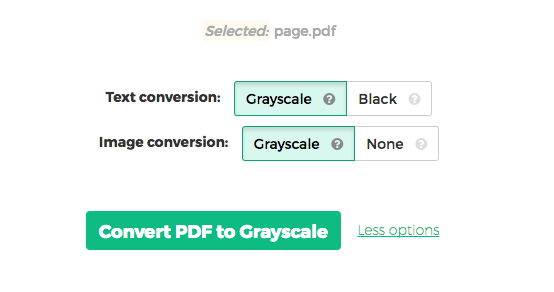
One of the tool features is that it can convert text to grayscale or simply black. This is handy when preparing a PDF document for offset printing.
Another feature allows skipping images altogether, leaving them in full colour, while converting to grayscale (or black) the text contents.