 Google Drive
 OneDrive
Below we show how to convert PDF pages to JPG, PNG or TIFF images.
-
上傳您的文件
文件通過加密連接安全上傳. 文件保持安全. 處理後,它們將被永久刪除.
不想上傳您的文件並離線處理它們?
Try Sejda Desktop. 與在線服務功能相同,且文件永遠不會離開您的計算機.點擊“上傳”並從您的本地計算機選擇文件.
將文件拖放到頁面上也有效.
Dropbox 或 Google Drive 文件
您也可以從 Dropbox 或 Google Drive 中選取 PDF 文件.
展開“上傳”下拉菜單並選擇您的文件.
-
Select an image format
By default PDF is converted to JPG. Alternatively, choose to save your PDF as PNG or TIFF.
-
Select image resolution
Choose between 220 dpi, 150 or 75 dpi. Larger resolution (220 dpi) will output larger images.
-
Choose pages to convert
Click to select pages to convert. By default all pages in the PDF document are converted.
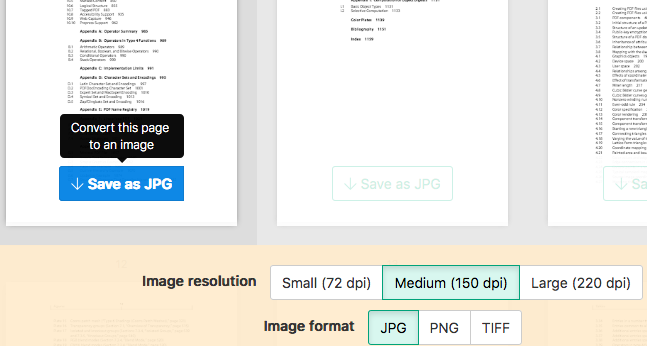
Quickly convert just a few pages?
Press the
Save as JPGbutton on the PDF page to quickly save it as an JPG image. Other image formats also supported.![]()
-
Save your changes
Click the
Convertbutton and thenDownloadan archive containing all the images.