 Google Drive
 OneDrive
Below we show how to add text watermark to PDF documents online, for free. Works on all desktop platforms including Mac.
Step 1: Select your PDF document
Upload your files
Files are safely uploaded over an encrypted connection. Files stay secure. After processing, they are permanently deleted.
Rather not upload your files and work with them offline?
Try Sejda Desktop. Same features as the online service, and the files never leave your computer.
Click 'Upload' and select files from your local computer.
Dragging and dropping files to the page also works.
Dropbox or Google Drive files
You can pick PDF files from Dropbox or Google Drive too.
Expand the 'Upload' dropdown and select your files.
Step 2: Add Text Watermark
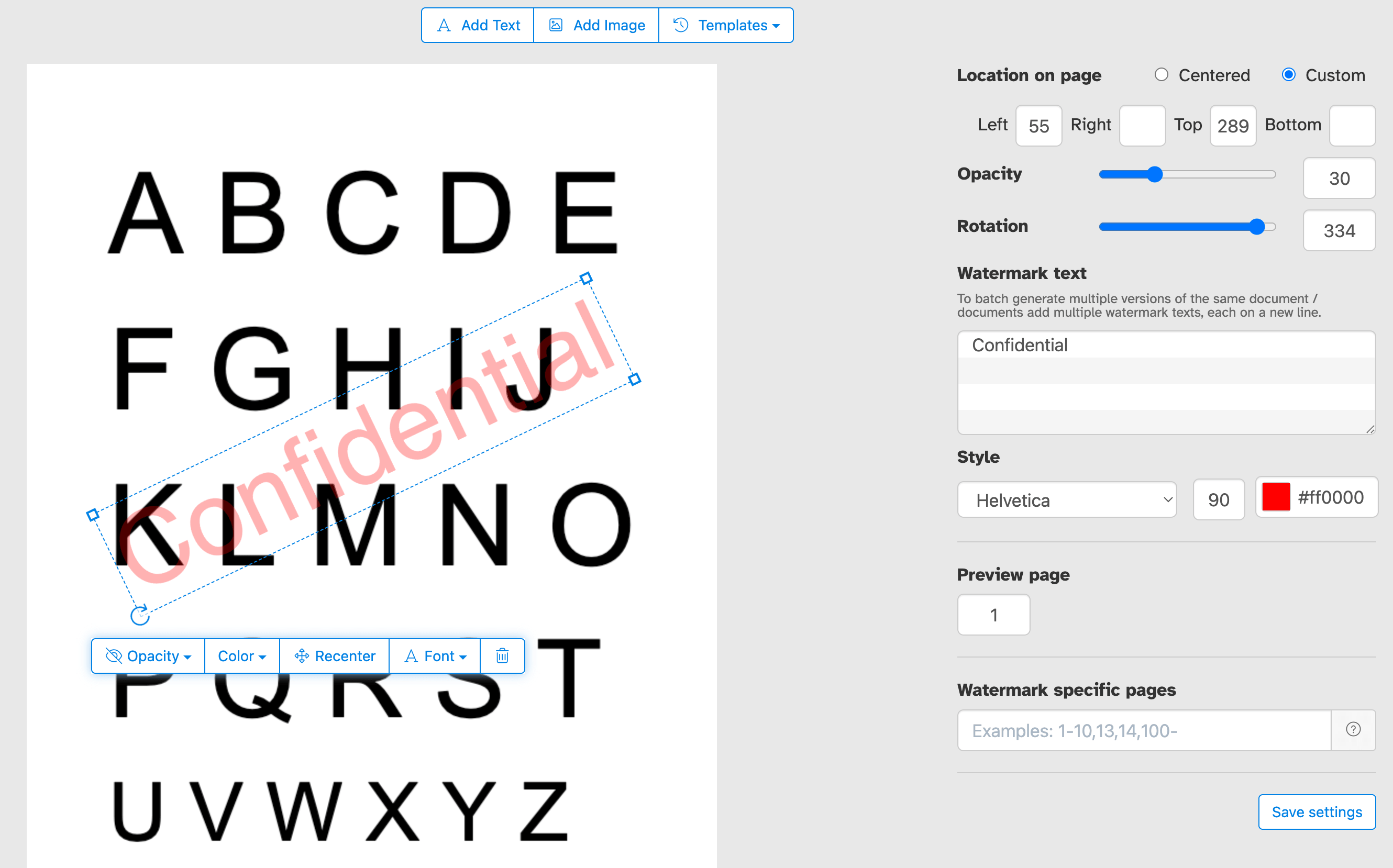
Click the 'Add Text' button at the top of the PDF page. You should see a text watermark being added.
Click on it to edit the text. Type 'Draft' or 'Classified' to try it out.
Step 3: Change text size, rotation and location on page
Click and drag the text watermark to change the location on the PDF page
Drag the rotation handle to rotate the text watermark.
Click and drag the resize handles found on the sides to change font size.
Step 4: Change text color, transparency and font family
Click on the text watermark to reveal its associated menu.
One can change the transparency of the watermark, making the text more or less opaque.
Watermark text color can also be configured, together with the font used for the text.
Watermark only a subset of PDF pages
Apply your watermark to every page in your document, or choose a custom page range. Whether you need to mark only the first page, the last, or a specific set of pages, you have precise control over where the watermark appears, without having to split or reassemble your PDF.
Precise control over watermark location on page
Position your watermark exactly where you want it. Click and drag it anywhere on the page preview, or enter precise X and Y coordinates for pixel-perfect placement.
Stamp your PDF with "Confidential," "Draft," "Sample," or any custom label to control how your document is perceived and shared. Add your company name, copyright notice, or logo to reinforce brand identity. Whether you're protecting sensitive business documents, marking work-in-progress files, or branding client deliverables, we make it simple to communicate the right message on every page.
Watermark multiple PDF documents or apply multiple marks in one go
Save time by watermarking multiple PDF files in a single session. Upload a batch of documents, apply your watermark settings once, and download all your stamped files together. Perfect for teams and businesses that need to process large volumes of PDFs consistently and efficiently.
You can also provide a batch of text watermarks that should be applied in one go to a set of documents.
Watermark PDF templates
Save your watermark settings as a template and reuse them whenever you need. Once you've configured your preferred text, font, color, size, opacity, and position, you can store that setup and apply it to future documents in just a click, no need to tweak the settings from scratch every time. Ideal to apply consistent watermarks across multiple documents on a regular basis.