 Google Drive
 OneDrive
Below we show how to add whitespace padding to PDF documents online.
Upload je bestanden
Bestanden worden veilig geüpload via een versleutelde verbinding. Bestanden blijven veilig. Na verwerking worden ze definitief verwijderd.
Liever niet je bestanden Uploaden en offline werken?
Try Sejda Desktop. Dezelfde functies als de online service, en de bestanden verlaten nooit je computer.
Klik op 'Upload' en selecteer bestanden van je lokale computer.
Bestanden naar de pagina slepen werkt ook.
Dropbox- of Google Drive-bestanden
Je kunt ook PDF-bestanden uit Dropbox of Google Drive kiezen.
Vouw het 'Upload' menu uit en selecteer je bestanden.
Step 2: Margin size
Type a value for the page size, in inch. Use the up/down arrows to change.
The page preview will update, showing the margin added to the PDF pages.
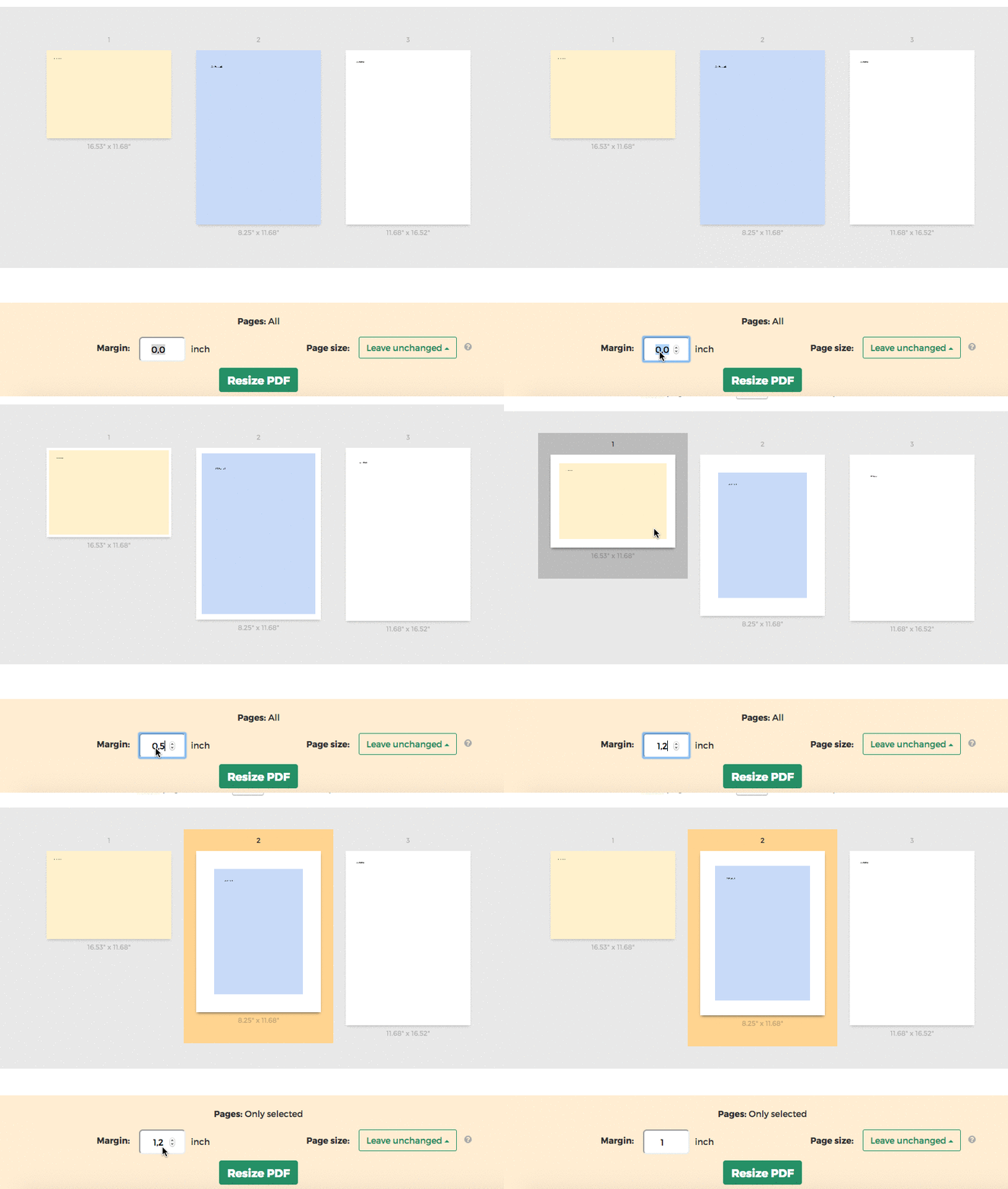
Tip: Apply to all pages in the document or just a few
You can specify only few pages that need the margin. Click on the page thumbnails to select them.